Image to Video AI with Kling 3.0, Veo 3.1 and Seedance
Upload a photo, describe how it should move, and pick the model that animates it. Seedance 1.5 Pro is selected, and Kling 3.0, Veo 3.1, Seedance 2.0 and more are one click away.
77 / 2000
Sign in to start generating
How to generate and edit video
- 1
Describe the shot
Write what happens in the clip. Add an image to start from, or switch to Edit and upload a video to change one you already have.
- 2
Pick a model and the format
Choose the model, then the aspect ratio, the duration and the resolution it supports. The Generate button shows what the run will cost.
- 3
Generate and recreate
The clip lands in the feed beside the controls. Download it, or recreate it to load the same settings back and try a variation.
Explore more apps
See all

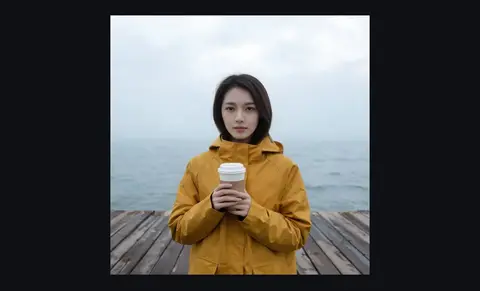

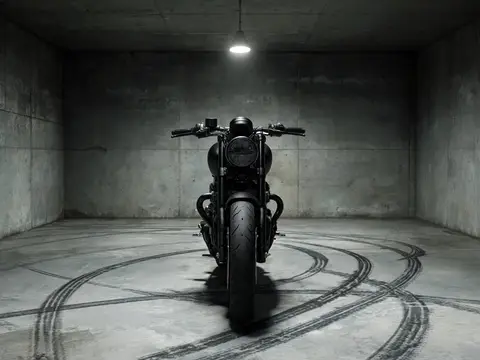
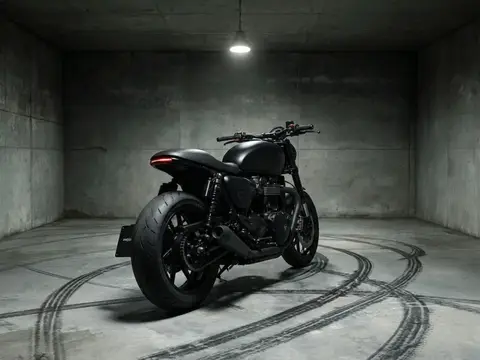
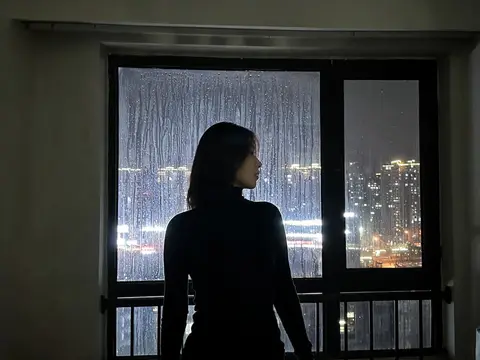
Also in: Deutsch · Español · Português · Français
Image to Video examples
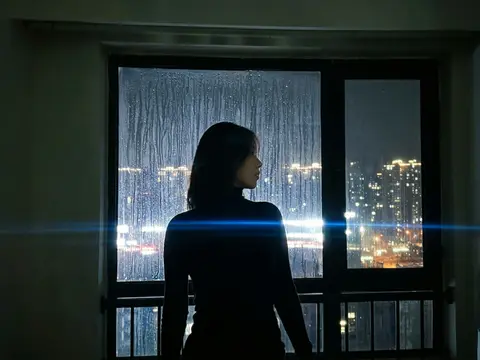
Each clip below was made from one still photo (itself generated, so no one real is in it). The model kept the person or the product from the photo and added the motion and the camera move.
A still of a man in a cream oversized suit on a bare runway, animated by Kling 3.0: he walks toward the lens with a confident stride as the camera tracks back. A product still of an orange sneaker frozen above a splash, animated by Seedance 2.0: the camera orbits the shoe while every droplet hangs in the air. A selfie-style still of a woman holding an unlabelled skincare bottle, animated by Veo 3.1: she shows it to the camera and dabs a little on her cheek, handheld phone feel.
What runs it
Seedance 1.5 Pro
The studio's default. Animates your photo into a 5, 8 or 10 second clip at up to 1080p, takes an optional end frame, and can add generated sound.
Kling 3.0
One pick away in the model picker. 5 or 10 second cinematic clips with an optional end frame and generated sound.
Google Veo 3.1
4, 6 or 8 second clips at 720p, 1080p or 4K, with sound when you switch it on.
Seedance 2.0
5 to 10 seconds from 480p up to 4K, with an optional end frame. Sound is included in the price.
How to use Image to Video
- 1
Upload Your image
The photo becomes the first frame of the clip, and the clip takes its framing from it. Models that take an End frame show a second slot beside it.
- 2
Pick the Model
Seedance 1.5 Pro is selected. Open the model picker for Kling 3.0, Veo 3.1, Seedance 2.0 and the rest; the shape, resolution and duration options follow the model you pick.
- 3
Set the Duration and write the Prompt
Describe the motion and the camera, not what is already in the photo: "she turns toward the lens as the camera slowly pushes in".
- 4
Press Generate Video
The button shows the credit cost first. A 5 second clip on the default model is 25 credits, and a failed run is refunded automatically.
What people use it for
Animate a product photo
Turn a packshot into a short vertical clip for TikTok, Reels or Shorts, with the product as it looks in your photo.
Bring a portrait or character to life
Start from a photo or an AI image of a person and have them walk, turn or react, with the face and outfit from the still.
Start and end frame shots
Add a second image as the last frame and the model fills in the move between them. Seedance 1.5 Pro, Kling 3.0, Seedance 2.0 and Wan 2.7 take one.
Compare models on one image
Run the same photo through Kling 3.0, Veo 3.1 and Seedance 2.0 from one panel and keep the take you like. Your settings are remembered per model.
What it costs
A 5 second 720p clip on Seedance 1.5 Pro, the studio's default, costs 25 credits, or 50 with sound. Across the models a clip runs from 12 credits (5 seconds of Seedance 1.5 Pro at 480p) to 2,850 (10 seconds of Seedance 2.0 in 4K), and the button shows the exact cost before you run it. The $10 Basic plan (500 credits a month) buys 20 default clips, 20 four second Veo 3.1 Lite clips or 4 five second Kling 3.0 clips, and Starter's 1,200 monthly credits cover 48 default clips or 10 on Kling 3.0.
Often used with Image to Video
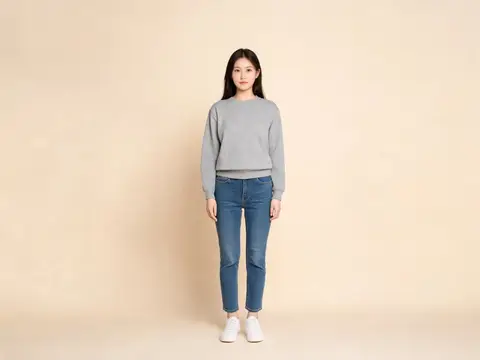

Image to Video: questions and answers
›What does turning an image into a video cost?
Generating starts with a plan; the cheapest is the $10 Basic plan (500 credits a month). A month of that plan covers 20 five second Seedance 1.5 Pro clips at 720p, 20 four second Veo 3.1 Lite clips at 720p, both without sound, or 4 five second Kling 3.0 clips at 110 credits each. There is no watermark.
›Which model should I pick for image to video?
Seedance 1.5 Pro is the default, at 25 credits for 5 seconds at 720p, and 12 at 480p for drafts. Pick Kling 3.0 for cinematic motion at 110 credits for 5 seconds, Veo 3.1 or Seedance 2.0 when you want 4K, and Wan 2.7 when the shot is about getting from a first frame to a last one. The Generate button shows the price of each before you run it.
›Can I use the videos commercially?
Kinoseed's terms say you keep ownership of the outputs you generate, subject to the terms of the underlying model providers, and the clips carry no watermark. You are responsible for having the rights to the photo you upload.
Articles about Image to Video
- OpenArt Alternative: See the Price of Every Video Before You Make It · Kinoseed as an OpenArt alternative: Seedance, Kling and Veo with the price of every clip shown before you run it, set beside OpenArt's published plans.
- How to Make a Product Video from a Photo for Your Online Store · Make a product video from one photo for Shopify, Etsy, Amazon or Reels: upload the packshot, describe one move, pick the shape. Steps and credit prices.
- How to Animate an Old Photo with AI · Animate an old photo with AI: clean up the scan, upload it as the first frame and ask for a small, natural motion. Steps, prompts and real credit prices.
- Kling 3.0 vs Veo 3.1: Which AI Video Model to Use · Kling 3.0 vs Veo 3.1 compared on clip length, resolution, sound, image inputs and the credit price of each clip, with a way to test both on one prompt.
- Veo 3.1 vs Veo 3.1 Lite: What You Give Up for the Lower Price · Veo 3.1 vs Veo 3.1 Lite: text or image input, 4K or 1080p, sound, and what each clip costs in credits. When the Lite model is enough and when it is not.
- Pollo AI Alternative: Many Video Models, One Price on Every Button · Kinoseed as a Pollo AI alternative: the same many-models-in-one idea, Kling, Veo and Seedance with a credit price on every run, and plans you can cancel.
- How to Turn an Image into a Video with AI · Turn an image into a video with AI: upload a photo, describe the motion, pick Kling 3.0, Veo 3.1 or Seedance 2.0. Steps, real credit prices and tips.
Start with Image to Video
Plans from $10 a month, cancel anytime. Failed runs are refunded.
Open Image to Video