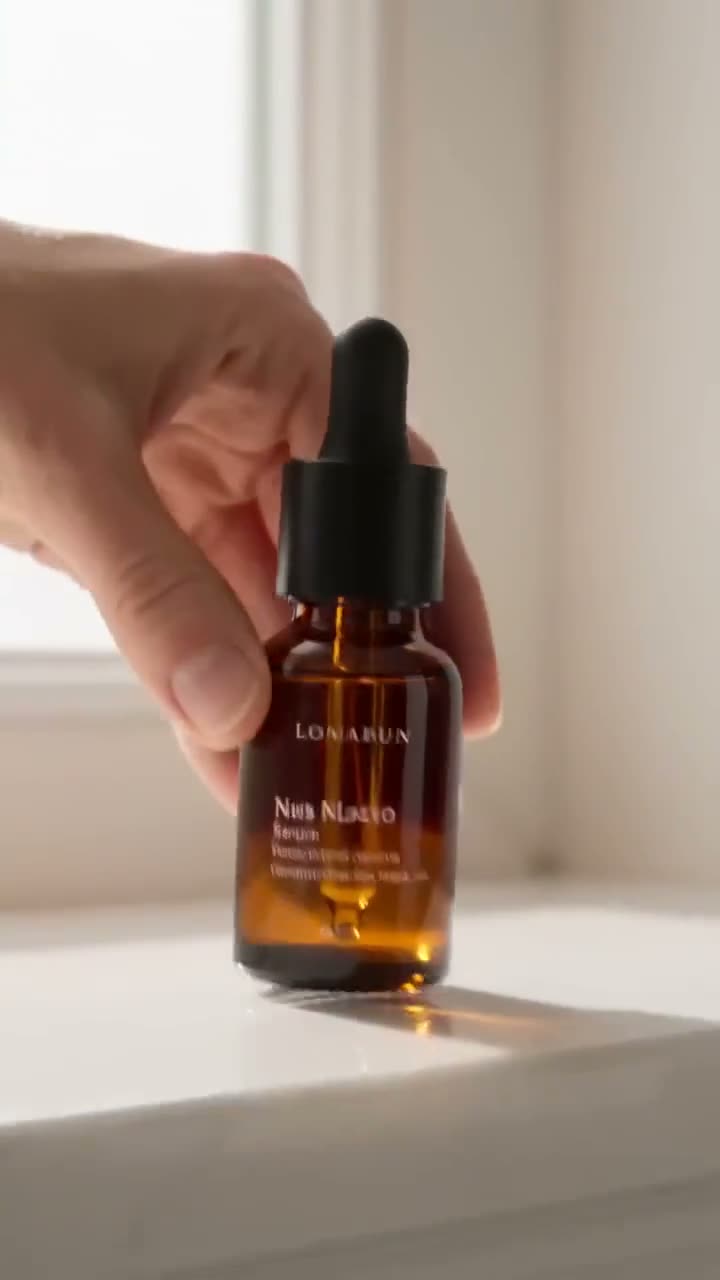
To make a product video from a photo, open Image to Video, upload the product shot as Your image, pick 1:1 for a product page or 9:16 for Reels and TikTok, write one move in the Prompt ("slow orbit as light sweeps across the label") and press Generate Video. A 5 second clip on Seedance 1.5 Pro, the default, costs 25 credits at 720p; on Kling 3.0 it costs 110. The product keeps its look because your photo is the first frame.
This guide covers the photo to start from, the shape for each place you sell, prompts that keep the product intact, and the ready-made product tools for spins, billboards and scenes.
What you need
- One clean product photo: the whole product in frame, sharp label, plain or simple background.
- Where the video goes: a product page, a marketplace listing, Reels or an ad. It decides the shape.
- A Kinoseed account with credits. Video starts with a plan; the $10 Basic plan (500 credits a month) covers 20 five second clips at 720p on Seedance 1.5 Pro.
Step by step
- 1
Open Image to Video and upload Your image
The photo becomes the first frame, so the product, the label and the colours carry into the clip. Crop it to the shape you want before uploading; the clip takes its framing from the picture.
- 2
Pick the shape for where you sell
1:1 suits most product pages and marketplace galleries, 9:16 suits Reels, TikTok and Shorts, 16:9 suits a website banner or YouTube. Choose it with the shape buttons.
- 3
Write one move in the Prompt
Describe motion, not the product: the photo already shows it. One camera move and one thing that happens: a slow orbit, a push in on the label, steam rising, a hand lifting it into the light. Add "the label stays sharp and unchanged" to protect the text.
- 4
Pick the Model, Resolution and Duration
Seedance 1.5 Pro is selected and is the low-cost choice: 12 credits for 5 seconds at 480p, 25 at 720p, 55 at 1080p. Switch the Model to Kling 3.0 (110 credits for 5 seconds) when the product has to move like a real object, such as liquid pouring or fabric falling.
- 5
Press Generate Video and download
The price is on the button before you press it. The clip lands in the feed as an MP4 with no watermark, ready to upload to your store. A failed run is refunded automatically.
Prompts to copy
Paste any of these into Image to Video as a starting point, then change the details to fit your photo.
Product page spin
The bottle turns slowly on its base as a soft highlight sweeps across the glass. Camera still, clean white background. The label stays sharp and unchanged.
Lifestyle moment
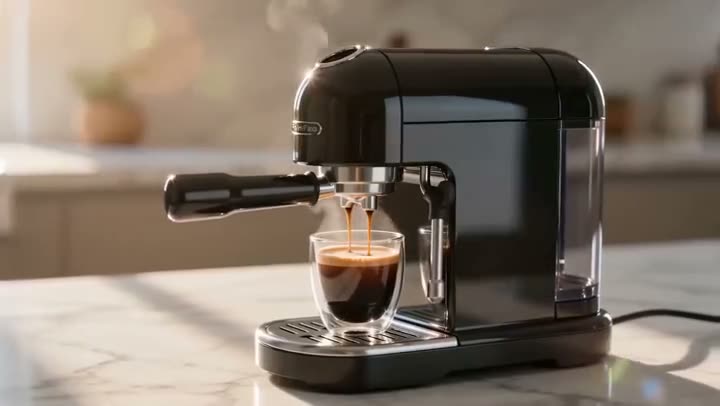
A hand reaches in and lifts the mug from the table, steam rising from the coffee, morning light through a window. Slow push in.
Reels hook
The sneaker drops onto a concrete floor and bounces once, dust kicking up, the camera tilting down to follow it. Vertical framing.
Ready-made product tools
For a set look, the product tools take the same photo and do the directing: Bullet Time Scene orbits the product as a scene builds around it, Billboard puts it on a giant city billboard, Product Placement sets it in a scene you describe. They run Seedance 1.5 Pro, 25 credits for 5 seconds at 720p, with a "Best quality" switch to Seedance 2.0 at 280.
Have a product page already? URL to Ad reads the link and writes the ad for you. For a turning packshot, see how to make a 360 product video.
Keep the video honest
The clip should show the product as it is. Use your real product photo, avoid prompts that change its size, colour or features, and check the label in the finished clip before you post it.
More examples
Tips for better results
- Shoot or crop the photo with space around the product, so a camera move has room.
- Draft at 480p, then run the keeper at 720p or 1080p.
- Make one 1:1 and one 9:16 version of the same move: the product page and the Reels feed want different shapes.
- Leave Sound off for store videos; most product pages play muted.
Frequently asked questions
Can I make a product video from just one photo?
Yes. Upload it in Image to Video as Your image, describe one move and press Generate Video. The photo becomes the first frame.
How much does an AI product video cost?
Video starts with a plan. A 5 second clip from a photo costs 25 credits on Seedance 1.5 Pro at 720p and 110 on Kling 3.0. The exact price is on the Generate Video button.
Will the product look the same?
Mostly, because the photo is the first frame. Ask for one simple move, add "the label stays sharp and unchanged", and check the label before posting.
Which format works for Shopify, Etsy or Amazon?
Download the MP4 and upload it to the listing. 1:1 fits most product galleries; check each store's own size and length limits.
Try it on your own shot.
Image to Video is open to explore. The price of a run is on the button before you spend anything.