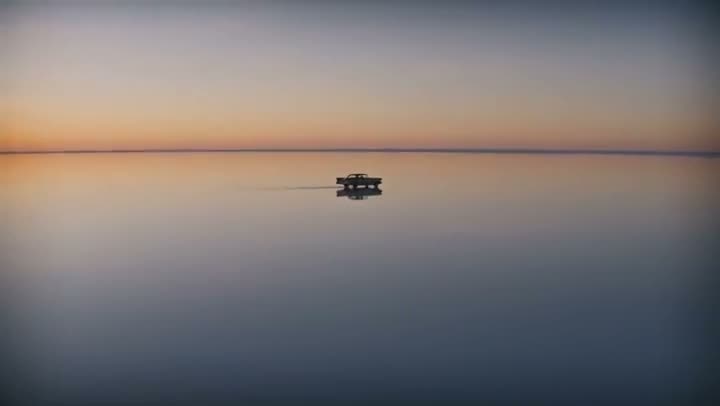
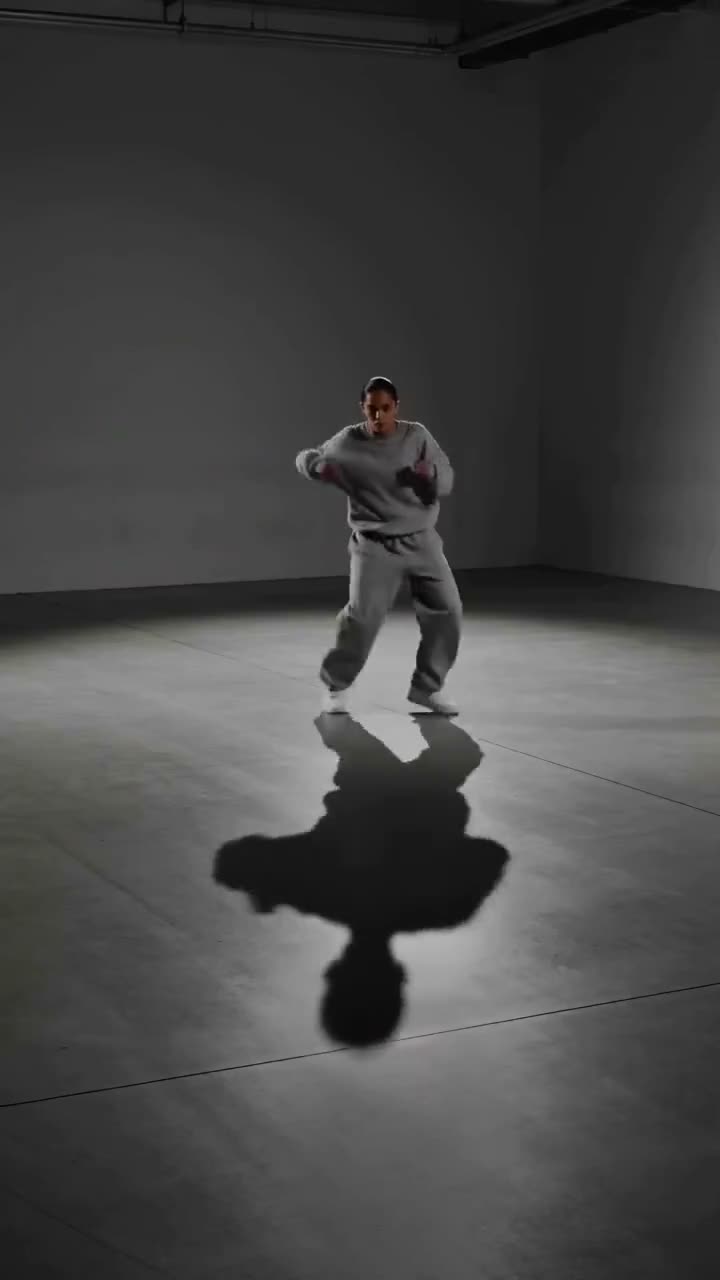
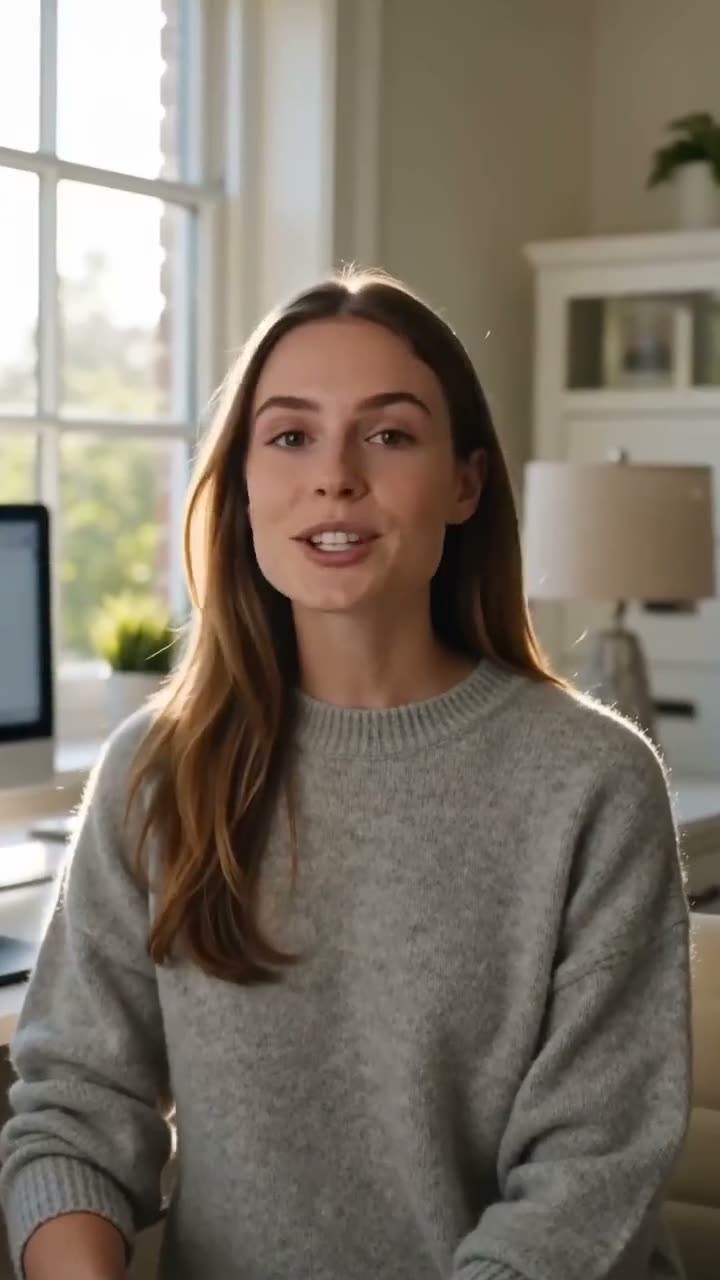
To turn an image into a video with AI, you give a video model a still as its first frame and tell it what should move. The model keeps what is in the photo, the face, the product, the outfit, and invents the motion and the camera move. Kinoseed's Image to Video runs 17 models that do this from one panel, with Seedance 1.5 Pro selected by default.
This article walks through the controls in order, explains how to write a motion prompt that does not fight your photo, and lists what each model costs per clip in credits, so you can pick one before you spend anything.
Selling something? The AI product ad from one photo template turns a product shot into a vertical video ad, and floating product video makes it hover and turn.
What you need
- One photo: a portrait, a product shot or an AI image. The clip takes its framing from it, so crop it to the shape you want first.
- A Kinoseed account and some credits. Generating starts with a plan; the $10 Basic plan (500 credits a month) covers a short clip on any model here, and several on the cheaper ones.
- The rights to the photo, and permission from anyone in it.
Step by step
- 1
Open Image to Video and upload Your image
The slot marked Start here takes your photo. It becomes the first frame of the clip. Models that support an End frame show a second slot beside it: add a last frame there and the model fills in the move between the two.
- 2
Pick the Model
Seedance 1.5 Pro is selected. Click the Model card to switch to Kling 3.0, Veo 3.1, Seedance 2.0 or the others. The shape, Resolution and Duration options change to what the chosen model supports, and your settings are remembered per model.
- 3
Set the shape, Resolution and Duration
Choose the aspect from the shape buttons, then the Resolution and the Duration. A higher resolution or a longer clip costs more, and the Generate Video button updates its credit count as you change them.
- 4
Write the Prompt as motion, not description
The photo already says what is in the frame. Use the Prompt for what happens: who moves, how, and what the camera does. "She turns toward the lens and smiles as the camera slowly pushes in" works better than describing her outfit again.
- 5
Press Generate Video
The cost is on the button before you press it: 25 credits for a 5 second Seedance 1.5 Pro clip at 720p. The finished clip appears in the feed, ready to download. A failed run is refunded automatically, and there is no watermark.

Prompts to copy
Paste any of these into Image to Video as a starting point, then change the details to fit your photo.
Portrait
She tilts her head, laughs softly and brushes the hair from her face, the camera drifting slowly to the left, natural window light.
Product
The bottle rotates slowly on its base as a soft highlight sweeps across the glass, the camera pushing in until the label fills the frame.
Landscape
Clouds roll fast over the ridge and the grass bends in the wind, slow aerial push forward, late afternoon light.
Which model to pick, and what it costs
Seedance 1.5 Pro is the default and the cheap first choice: at 720p, 25 credits for 5 seconds, 50 for 10, or 50 for 5 seconds with the Sound box ticked. It takes an optional end frame too.
Kling 3.0 is one pick away and the safe choice for the take you will post: 110 credits for 5 seconds, 210 for 10, or 160 for 5 seconds with sound. Its motion has weight, which suits people and products alike.
Google Veo 3.1 runs 4, 6 or 8 second clips at up to 4K: 150 credits for 4 seconds at 720p and 290 for 8 seconds at 1080p. Google Veo 3.1 Lite is the cheap draft version at 25 credits for 4 seconds at 720p.
Seedance 2.0 goes from 480p to 4K and includes sound in its price: 130 credits for 5 seconds at 480p, 280 at 720p. For the cheapest drafts, Seedance 1.5 Pro at 480p is 12 credits for 5 seconds, and Wan 2.7 is 95 credits for 5 seconds at 720p.
Models that take an End frame: Seedance 2.0, Kling 3.0, Wan 3.0, MiniMax H3, Seedance 2.5, Wan 2.7, Seedance 1.5 Pro, Seedance 2.0 Mini, Kling 3.0 Standard, Seedance 2.0 Fast, Kling 2.6 Pro. Use one when you know exactly where the shot has to land.
What the entry plan buys
Generating starts with a plan. The $10 Basic plan (500 credits a month) covers 20 default clips of 5 seconds at 720p, 20 clips of 4 seconds on Veo 3.1 Lite, or 4 5 second Kling 3.0 clips. See pricing for the bigger plans.
More examples
Tips for better results
- Crop before you upload. The clip takes the photo's framing, so a vertical crop gives you a vertical clip for Reels, Shorts or TikTok.
- Draft cheap, then render once. Try the motion on the default Seedance 1.5 Pro or on Veo 3.1 Lite, and switch to Kling 3.0 or Veo 3.1 for the take you will post.
- Ask for one move. A single clear action and one camera move reads better in 5 seconds than three things happening at once.
- Want the same character across many clips? Build them once with a consistent character and animate that portrait.
Frequently asked questions
What does turning an image into a video cost?
Generating starts with a plan. A 4 second Veo 3.1 Lite clip costs 25 credits, a 5 second Seedance 1.5 Pro clip at 720p, the default, costs 25 and a 5 second Kling 3.0 clip costs 110; the $10 Basic plan (500 credits a month) covers any of them.
Which AI model is best for image to video?
Start with Seedance 1.5 Pro, the default, for cheap drafts and everyday clips. Pick Kling 3.0 for believable, weighty motion, Veo 3.1 for a polished, filmic look or 4K, and Seedance 2.0 for 4K with sound included. The Generate Video button shows each model's price before you run it.
How long can the video be?
It depends on the model: Seedance 1.5 Pro makes 5, 8 or 10 second clips, Kling 3.0 makes 5 or 10, Veo 3.1 makes 4, 6 or 8, and Seedance 2.0 makes 5, 8 or 10. For a longer piece, generate several clips and join them, for example with Transitions.
Will the person in my photo still look like themselves?
The photo is the first frame, so the face, clothes and setting start exactly as they are. Big turns and fast motion give the model more to invent, so keep the move simple when likeness matters most.
Is there a watermark, and can I use the clip commercially?
There is no watermark on any result. Kinoseed's terms say you keep ownership of the outputs you generate, subject to the terms of the underlying model providers, and you need the rights to the photo you upload.
Try it on your own shot.
Image to Video is open to explore. The price of a run is on the button before you spend anything.