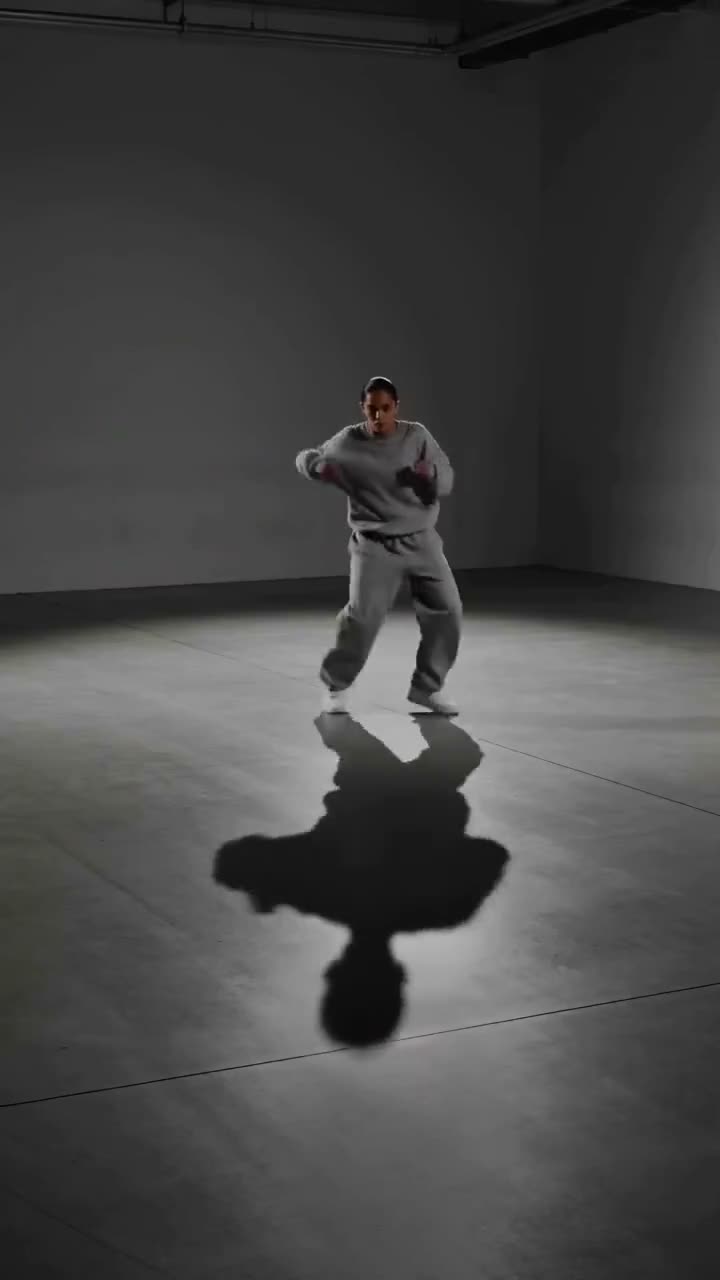
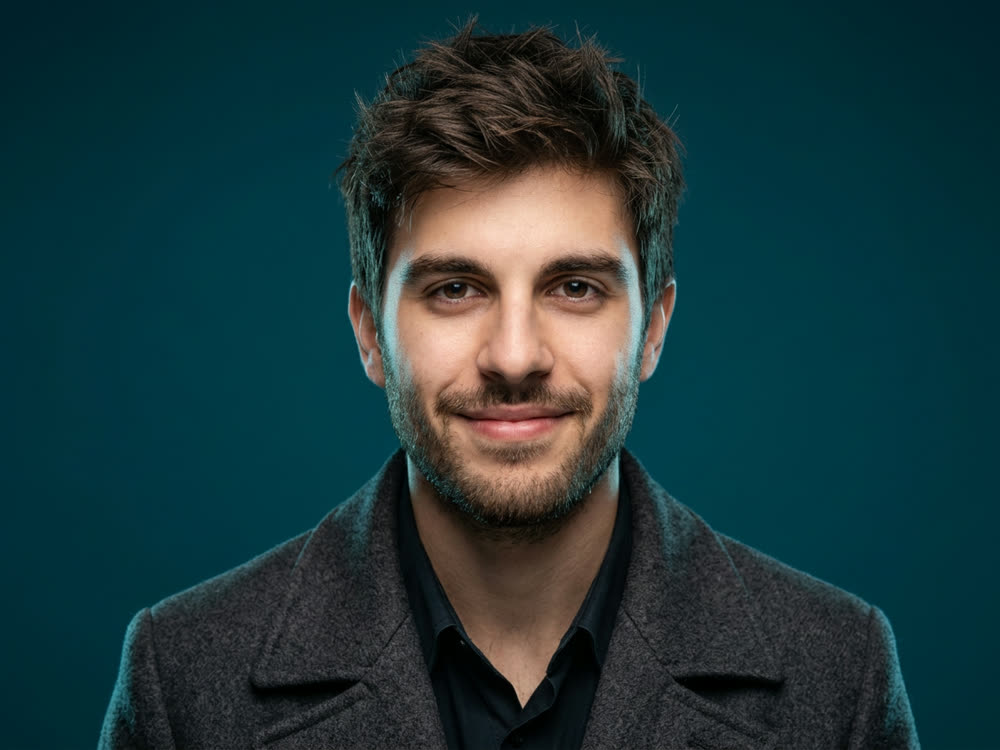
Ask an image model for "the same woman, now in a café" and you get a different woman. That is fine for a one-off picture and useless for anything with more than one frame: a comic, a storyboard, a brand mascot, an ad campaign with a recurring face. A consistent AI character means the identity is locked first, and only the scene, wardrobe and light change around it.
This article shows how to do that with Kinoseed's Soul ID Character, which takes the likeness from one reference photo and carries it into every shot you ask for.
What you need
- One clear, front-facing portrait of the character. A real photo or a generated face both work.
- Permission from the person, if the face belongs to someone real who is not you.
Step by step
- 1
Upload the Identity reference
The whole tool hangs on this image: the likeness is taken from it and kept in every result. One front-facing portrait, evenly lit, with the face large in the frame and nothing covering it.
- 2
Choose a Scene preset
Six presets set the setting, lens and light: Studio portrait, Editorial, Street, Cinematic, Fantasy and Stadium. The line under the label shows exactly what the selected preset asks for.
- 3
Add Extra direction
Optional, and where the variety comes from: wardrobe, props and mood. "Wearing a yellow raincoat, holding a paper map, hopeful" turns the same person and preset into a new shot.
- 4
Set the Aspect and press Generate Portrait
Aspect is 1:1, 4:5, 16:9 or 9:16, with 4:5 selected for you. The portrait lands in the feed, where you can open it full size, download it or recreate it.
Prompts to copy
Paste any of these into Soul ID Character as a starting point, then change the details to fit your photo.
Everyday
a grey hoodie and headphones, coffee in hand, relaxed and slightly tired
Work
a navy blazer over a white t-shirt, laptop under one arm, confident half smile
Story beat
rain-soaked trench coat, collar turned up, looking back over one shoulder, tense
Building a character set
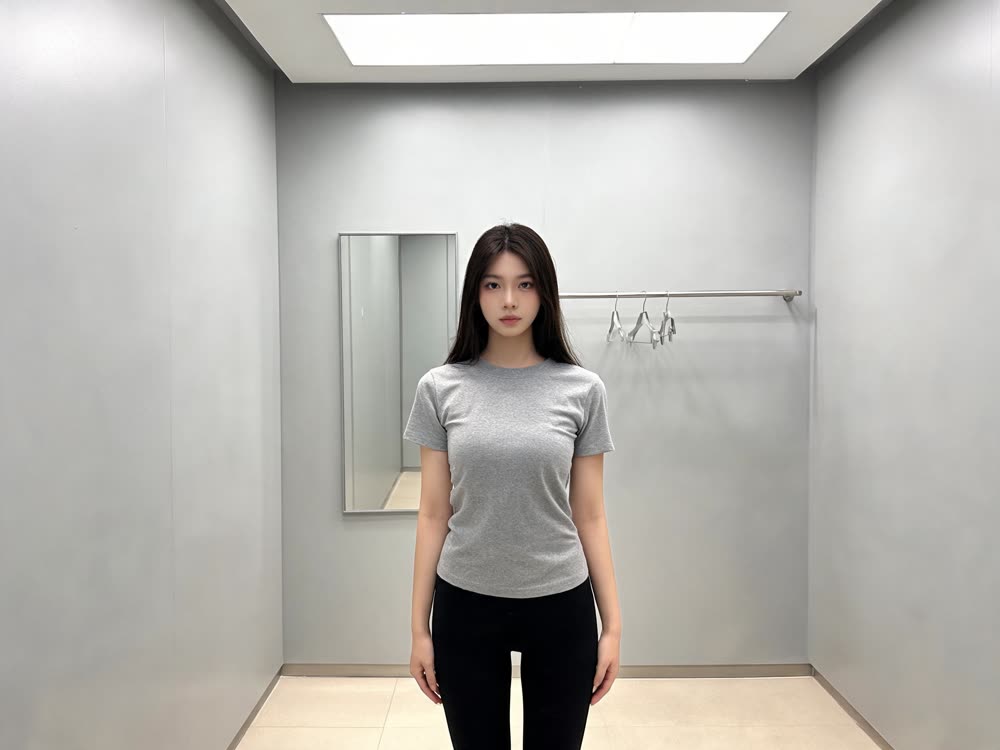
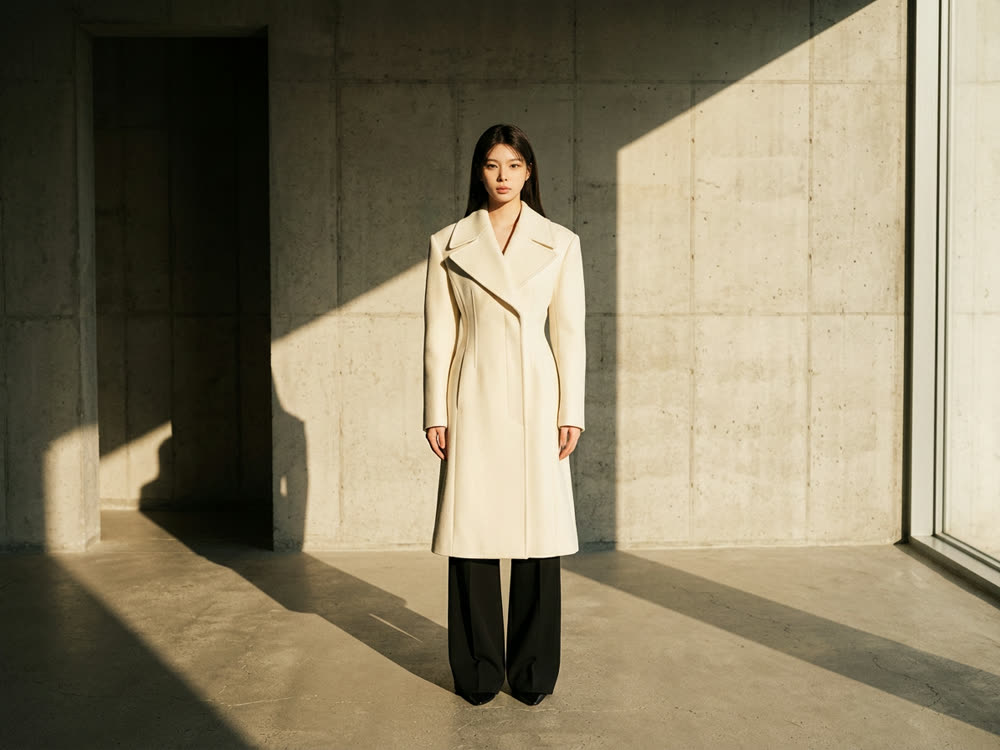
Keep the Identity reference the same and change one thing per run: the scene preset, or the Extra direction. Run Studio portrait for a clean headshot, Street for a candid, Cinematic for a key art frame, and you have a matching set in a few minutes. Save the best result: it can become the subject photo for the video tools later.
Taking the character into video
A consistent still is the start of a consistent clip. Use your portrait as the subject in Motion Control to make the character perform a move, as the face in Lipsync Studio to make them speak, or as the avatar in UGC Factory to have them present a product.
More examples
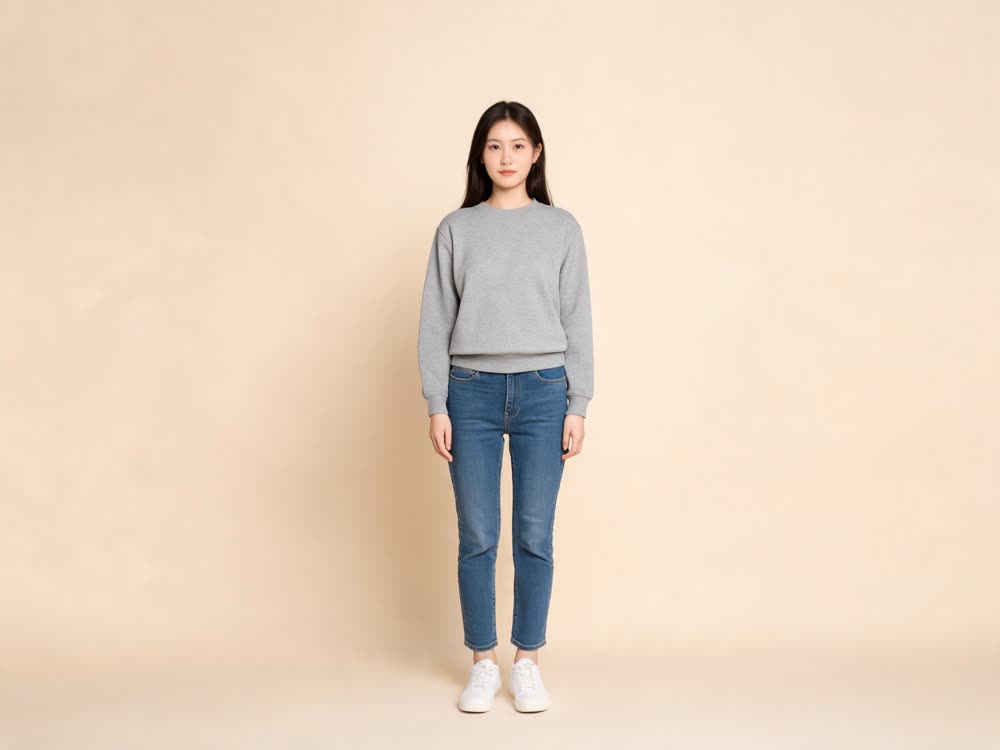
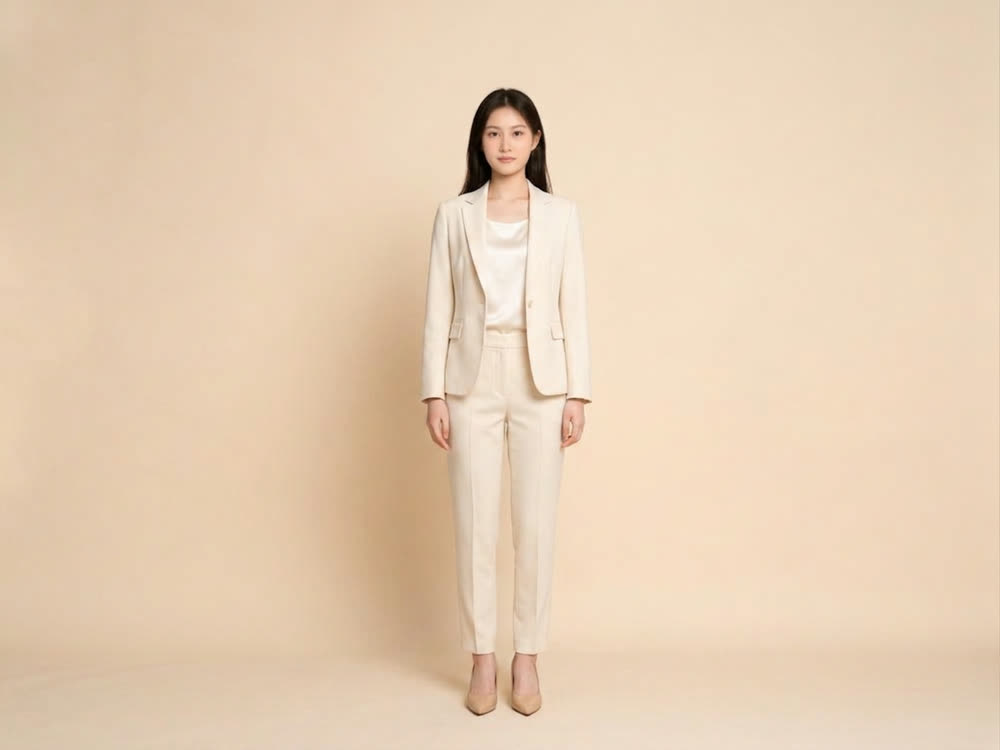
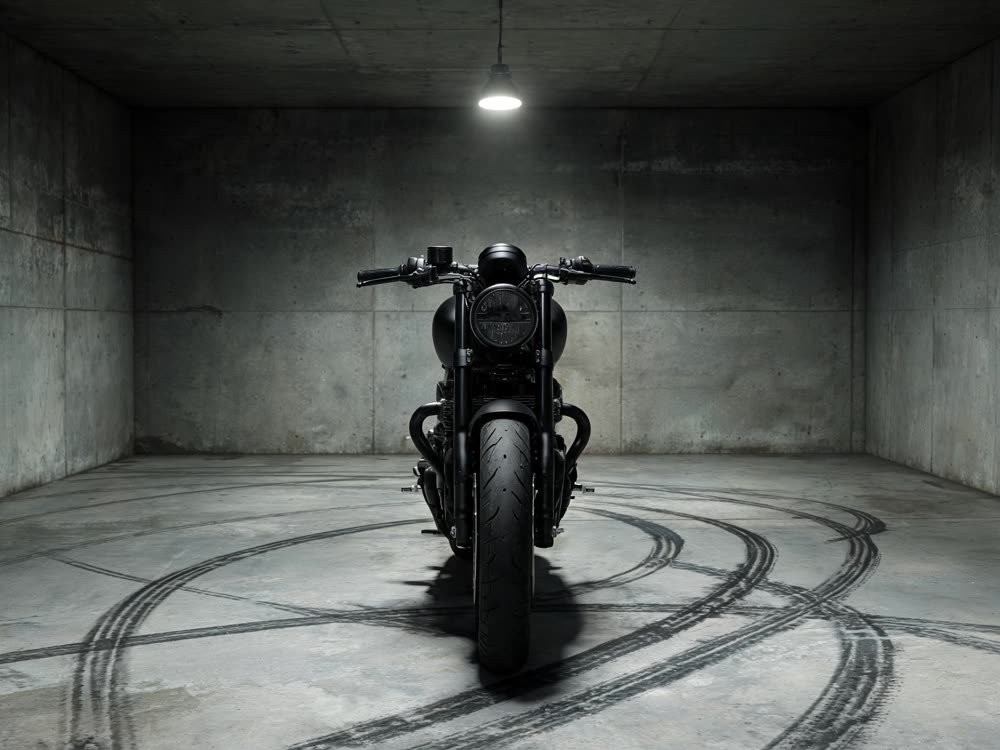
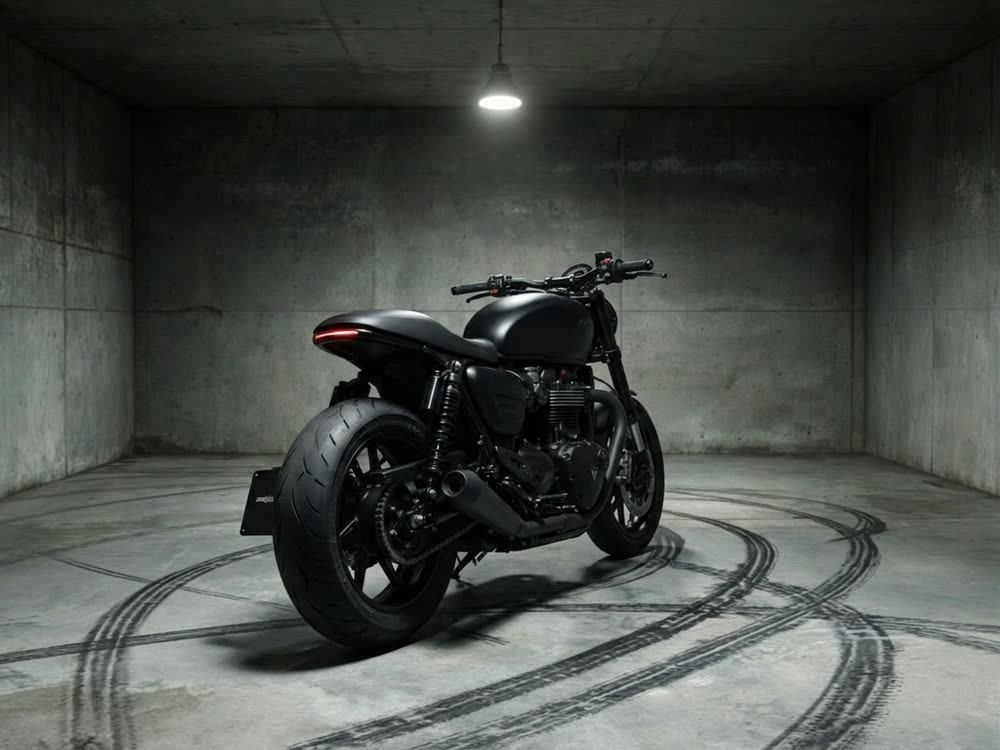
Tips for better results
- The reference decides everything. Sunglasses, a hand on the chin or a strong side shadow in the reference all travel into the results as uncertainty.
- Change one variable at a time. If two results disagree about the face, it is easier to tell why when only the scene changed.
- Describe wardrobe in Extra direction, not the face. The face is already set by the reference, and describing it again can pull it away.
- For a person who must stay recognisable to a real audience, check every result next to the reference before you publish it.
Frequently asked questions
How many reference photos do I need?
One. Soul ID Character takes a single identity reference, so choose your clearest, most front-facing portrait.
Which model does it use?
Seedream 5.0 Lite, in its edit mode, with your portrait as the reference image.
Can I make a character that is not a real person?
Yes. Generate a face in the image studio first, then use it as the Identity reference. That is the usual way to build an original mascot or story character.
Can I use a celebrity's face?
No. Kinoseed's terms prohibit impersonating a real person without their permission. Use your own face, one you have permission for, or an original character.
Try it on your own photo.
Soul ID Character is open to explore. The price of a run is on the button before you spend anything.