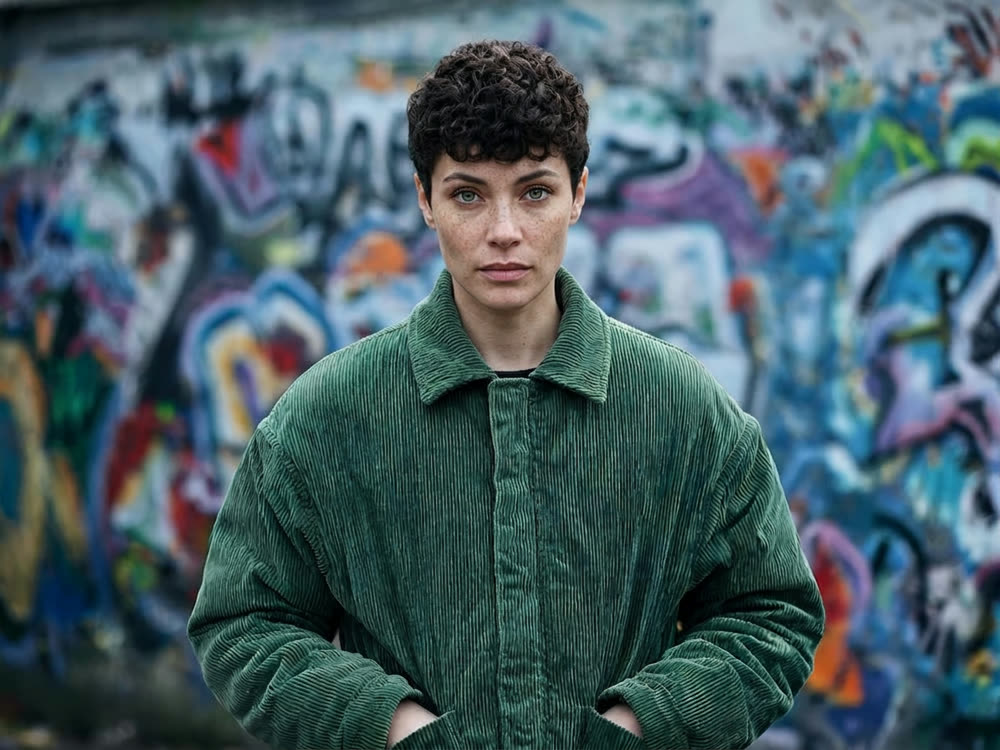
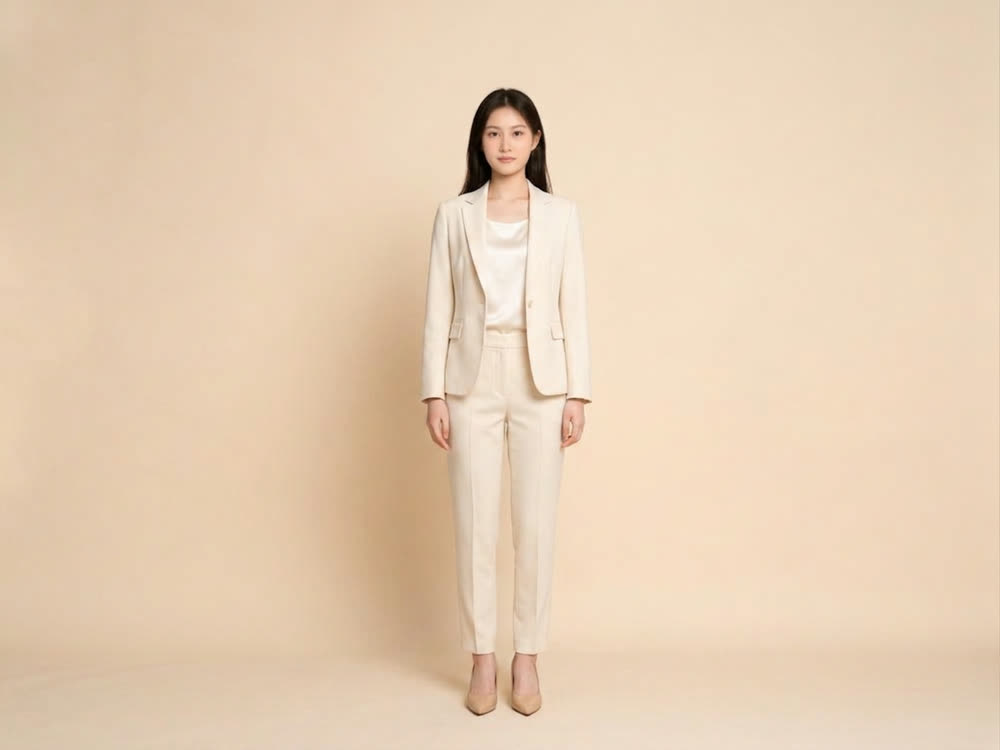
Want to see how a look works before you buy it, shoot it, or pitch it? Swapping clothes in a photo used to mean a reshoot or an afternoon of compositing. An AI outfit changer keeps the person, the pose and the room exactly as they are and changes only what they are wearing.
This article shows how to change clothes in a photo with Kinoseed's Outfit Swap, from one upload.
What you need
- A full-body or half-body photo of the person to dress.
- A rough idea of the look: tailored, streetwear, evening, outdoor and so on.
Step by step
- 1
Upload the photo
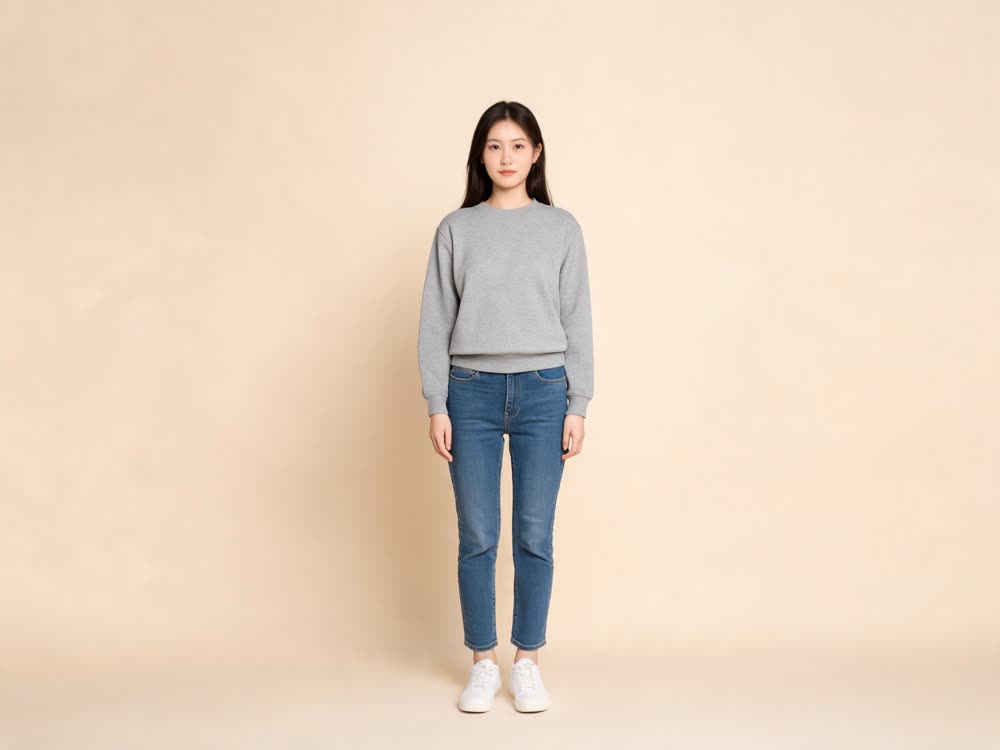
A shot where the body is visible works best, because the model has to put clothes on a shape it can see. A headshot leaves it guessing at everything below the collar.
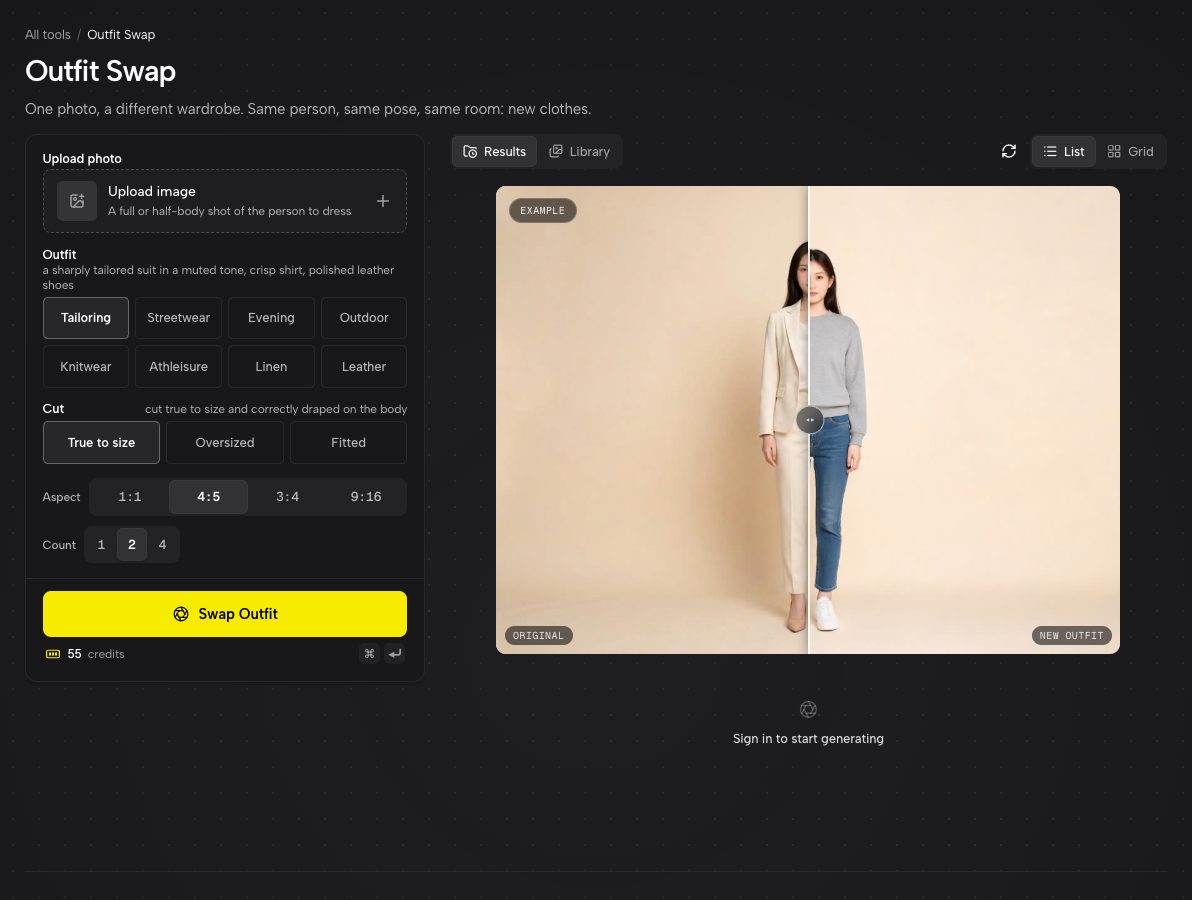
Outfit Swap with an example redress on the right. - 2
Choose an Outfit
Eight wardrobes to pick from: Tailoring, Streetwear, Evening, Outdoor, Knitwear, Athleisure, Linen and Leather. Each one is a complete, styled look rather than a single garment.
- 3
Choose the Cut
True to size, Oversized or Fitted. The same outfit reads completely differently with volume through the shoulders than it does following the line of the body, so this is worth trying both ways.
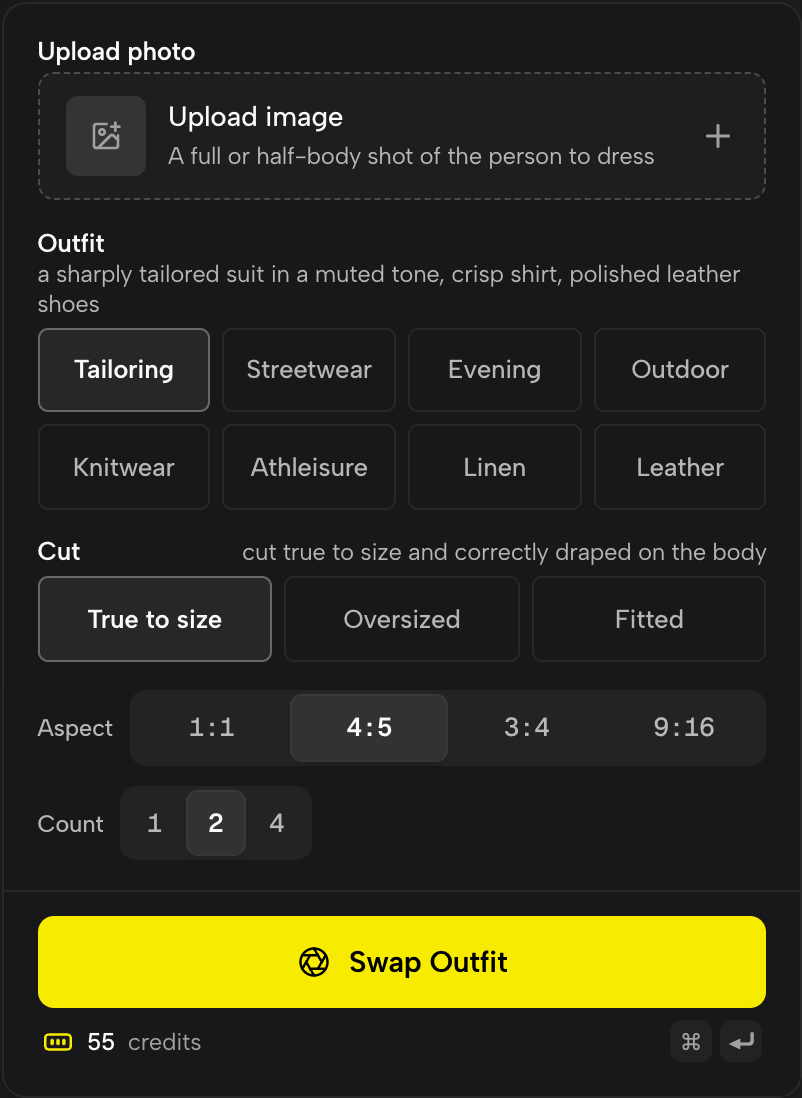
Outfit and Cut are separate choices, so one look can be tried three ways. - 4
Set Aspect and Count, then press Swap Outfit
Aspect offers 1:1, 4:5, 3:4 and 9:16. Count renders 1, 2 or 4 versions at once, so you get variations of the same brief side by side to choose from.
What stays and what changes
The person's identity, face, hair, pose, the framing, the background and the lighting are all held fixed. Only the clothing is regenerated, with fabric that drapes naturally and shadows where the garment meets the body. That is what makes the result usable as a lookbook frame instead of a costume filter.
Ideas for using it
Styling a shoot before booking wardrobe. Mocking up a brand's range on a single model. Showing a client three directions from one test photo. Or just checking whether you would actually wear linen.
For whole collections on a consistent model, Fashion Factory builds lookbook shots, and ClipCut turns one selfie into an outfit reel.
More examples
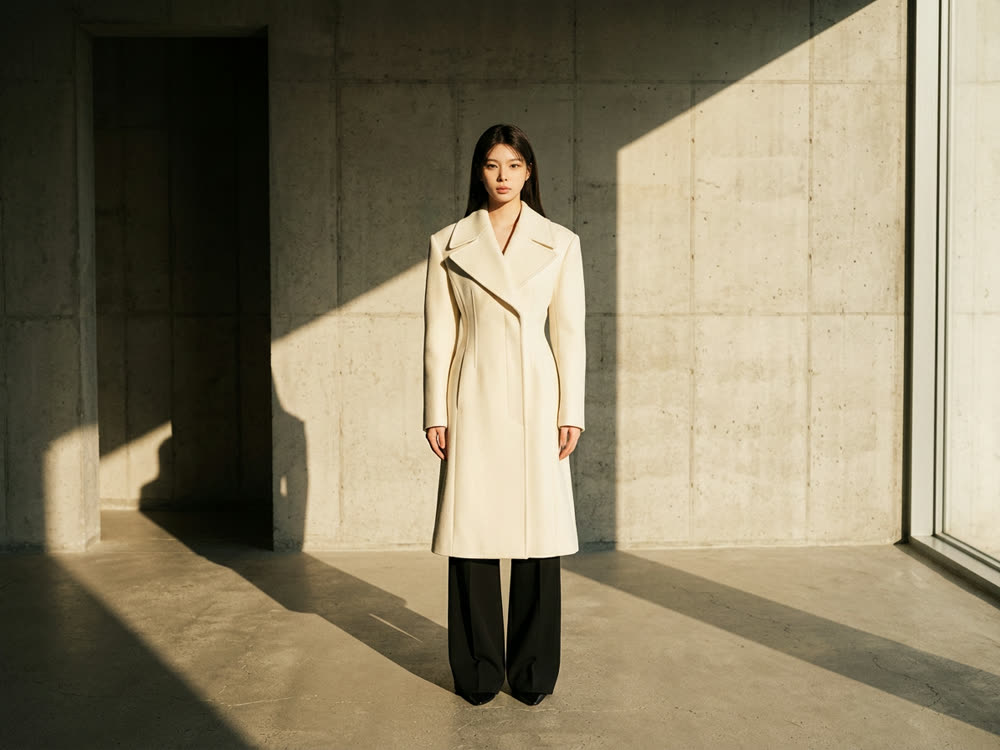
Tips for better results
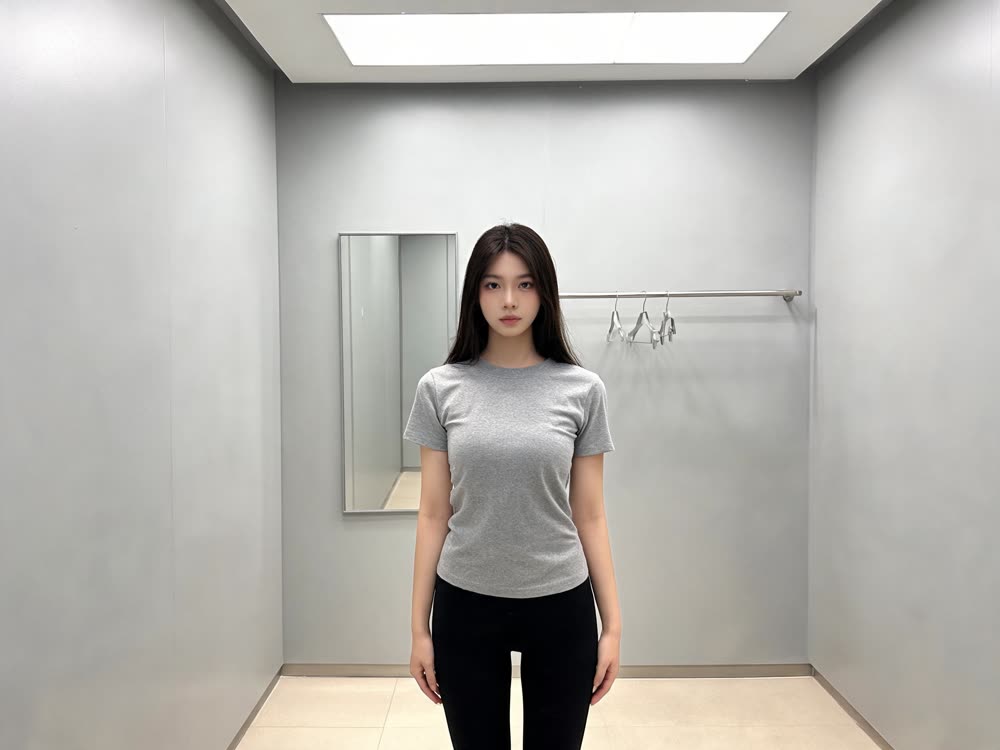
- Stand-up, front-facing photos give the cleanest swaps. Arms crossed over the torso hide the garment the model is trying to draw.
- Render four at once. Fabric folds and details vary between runs, and picking the best of four is cheaper than rerunning one at a time.
- Change one thing per run. Swap the Outfit and keep the Cut, then the other way round, so you can see which choice made the difference.
- Want the face changed as well as the clothes? Run a face swap on the result afterwards.
Frequently asked questions
Does outfit swap change the person's face or body?
No. The identity, pose, framing, background and lighting are kept. Only the clothing changes.
Can I upload a specific garment to try on?
Outfit Swap works from its eight wardrobe styles and three cuts. To place a specific product into a photo, mask the area in Inpaint and attach the product with Add product/image.
What kind of photo works best?
A full or half-body shot, well lit, with the body clearly visible and not covered by arms, bags or other people.
Can I get a vertical image for Stories or Reels?
Yes. Pick 9:16 in the Aspect setting.
Try it on your own photo.
Outfit Swap is open to explore. The price of a run is on the button before you spend anything.