The transitions that go viral are not wipes and dissolves. They are a flock of birds that carries one scene into the next, a frame that melts into another, an ink bloom that opens onto a new location. Pulling those off by hand takes a VFX artist and a lot of rotoscoping. With AI video transitions, you give the model the first frame, the last frame and the style of passage, and it renders the move between them.
Here is how to make seamless transitions with Kinoseed's Transitions tool.
What you need
- A start frame: a still of the shot you are leaving.
- An end frame: a still of the shot you are arriving at.
- Both at the same aspect ratio, ideally. Screenshots from your two clips work well.
Step by step
- 1
Add a Start frame
The shot you are leaving. This becomes the first frame of the result, so the transition picks up exactly where your first clip ends.
- 2
Add an End frame
The shot you are arriving at. The model treats it as a hard constraint, so the clip genuinely lands on that frame rather than drifting somewhere near it. That is what lets you cut straight into your second clip afterwards.
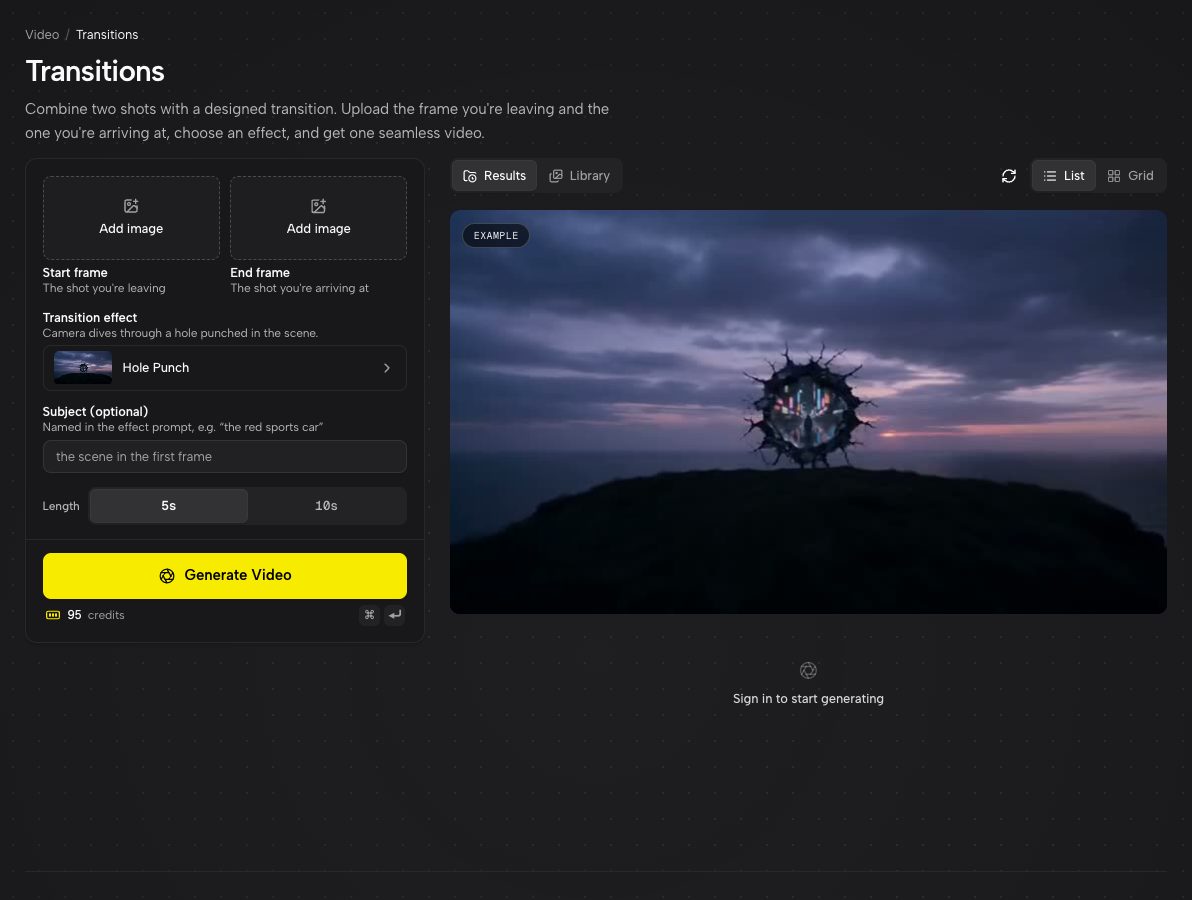
Transitions with the Hole Punch preset selected and its demo playing on the right. - 3
Pick a Transition effect
Open the preset gallery and choose how the passage happens: Hole Punch, Flame Wipe, Melt, Raven, Light Streak, Shatter, Ink Bloom or Morph Cut. Every preset plays its own demo, so you can see the move before you commit.
- 4
Name a Subject and set the Length
Subject is optional. Describe the scene in the first frame ("a woman in a red coat on a pier") and the effect is built around it. Length is 5 or 10 seconds.
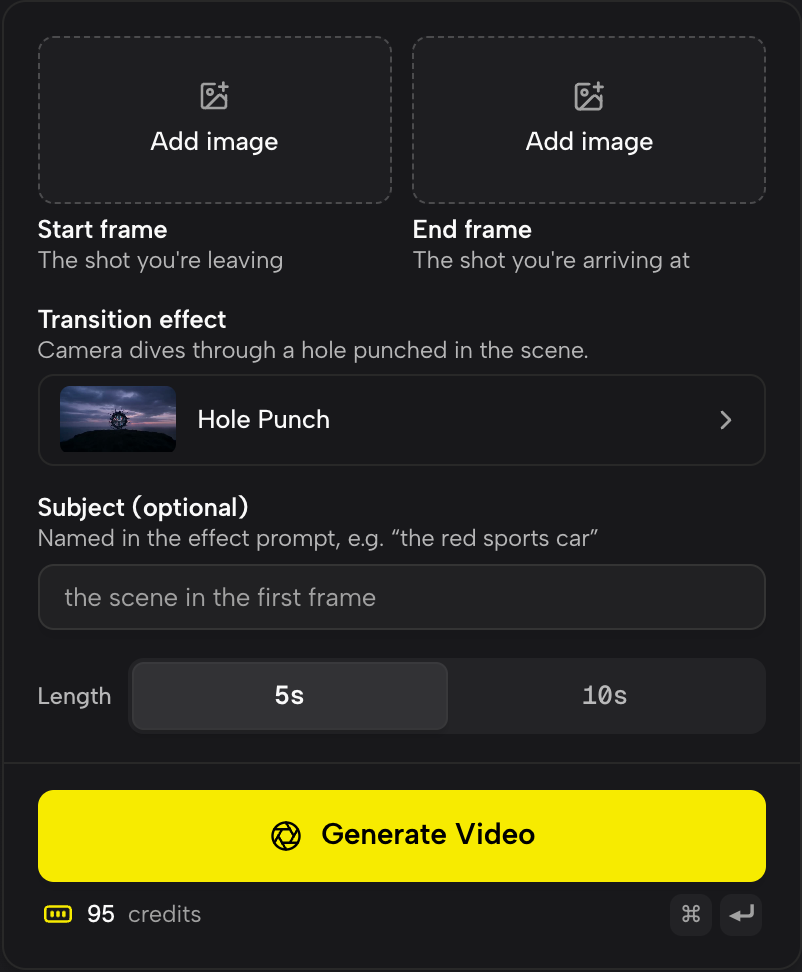
Start frame, End frame, the effect picker, Subject and Length. - 5
Press Generate Video
The price for the exact length is on the button. The finished clip plays in the feed, where you can expand it, download it or recreate it with a different effect.
Which transition to pick
Morph Cut and Melt suit shots that share a shape, like a face into a face or a building into a mountain. Raven, Light Streak and Flame Wipe work between scenes that have nothing in common, because something crosses the frame and hides the change. Shatter and Hole Punch are the loud ones, made for the beat drop in a music edit or the reveal in an ad.
Building a full sequence
Take the last frame of clip A and the first frame of clip B, generate the transition, then place it between them in your editor. Because the transition starts and ends on real frames from your footage, the joins are invisible. Repeat for each cut to chain a whole travel reel or product story together.
Need the clips themselves? The video studio turns a prompt or a still into a shot, and Cinema Studio builds a multi-shot sequence.
More examples
Tips for better results
- Match the lighting of the two frames if you can. A day scene into a night scene works, but the transition has to spend its time on the change of light as well as the effect.
- 5 seconds is usually enough for a social edit. Use 10 for slow, atmospheric moves where the passage itself is the moment.
- Write the Subject for the first frame, not the second. The effect grows out of what is there at the start.
- Keep the subject roughly in the same part of the frame in both stills. The eye follows it through the cut and the transition feels deliberate.
Frequently asked questions
Can I use video clips instead of still frames?
The Start and End slots take stills. Export the last frame of your first clip and the first frame of your second, and the transition will join them seamlessly.
How long are the transitions?
5 or 10 seconds, set with the Length control.
Do the start and end frames need to be similar?
No. Effects like Raven, Light Streak and Flame Wipe are designed to join completely different scenes. Morph Cut and Melt look best when the two frames share a similar shape.
What format do I get?
An MP4 you can download and drop straight into Premiere, Final Cut, DaVinci Resolve, CapCut or any other editor.
Try it on your own shot.
Transitions is open to explore. The price of a run is on the button before you spend anything.