AI Image Generator: Create and Edit Images
0 / 2000
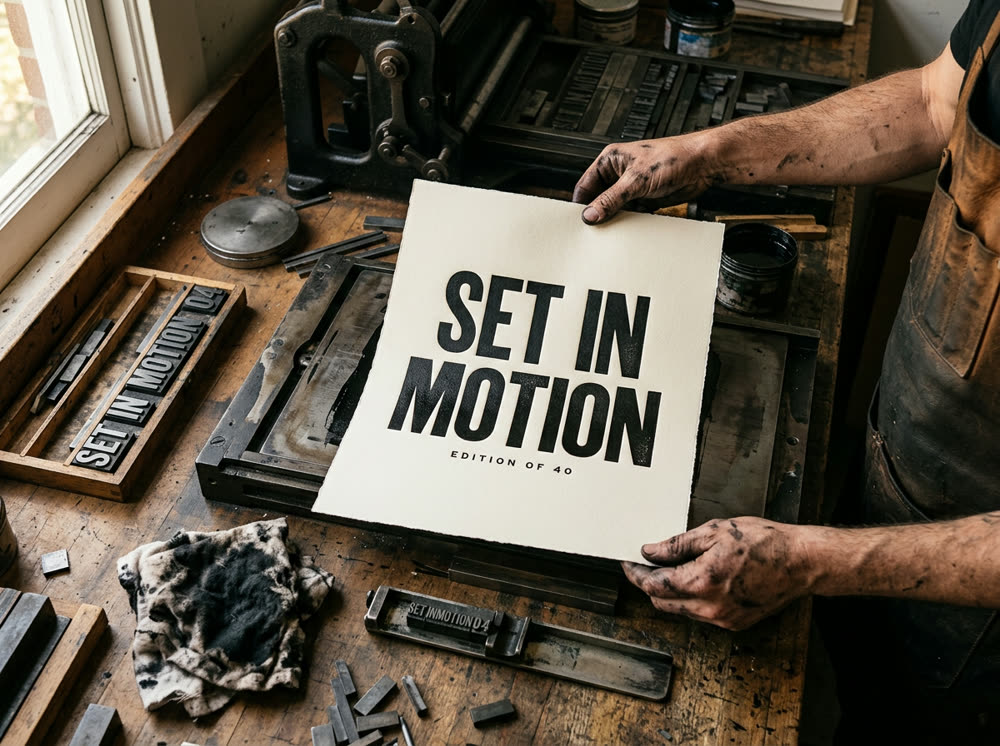 Example
Sign in to start generating
How to generate and edit images
- 1
Describe the image
Write what should be in the frame. Add a reference or a character when the result has to match something you already have.
- 2
Pick a model and the frame
Choose the model, the aspect, the quality and how many variants come back in one run.
- 3
Generate and pick
Variants land in the feed beside the controls. Open one full size, download it, or recreate it with the same settings.
Explore more apps
See all


Image Studio: questions and answers
›What does the AI image generator cost?
Generating starts with a plan from $10 a month (500 credits a month). Each model has its own price, and the Generate button shows the cost for the model, quality and number of images you picked; the $10 Basic plan (500 credits a month) covers a good handful of images on any of them.
›Which AI image models can I use?
Nano Banana 2 (the default), Nano Banana Pro, GPT Image 2, GPT Image 1.5, Seedream 5.0 Lite, Grok Imagine, FLUX.2, Reve and Z-Image, all in one studio. You can switch models between runs without leaving the page.
›Can I edit an existing image?
Yes. Switch to Edit, upload a reference image and write an edit instruction, and the model changes what you asked for. In Generate mode you can also add an optional reference so the result matches something you already have.
›How many images can I generate at once, and in which sizes?
1, 2, 4 or 8 variants per run, in 1:1, 4:5, 3:4, 3:2, 16:9 or 9:16. Variants land in the feed beside the controls, where you can open, download or recreate them.
›Can I use the images commercially?
Kinoseed's terms say you keep ownership of what you upload and of the outputs you generate, subject to the terms of the underlying model providers. You are responsible for having the rights to any photo, clip or audio you upload.
›Do the images have a watermark?
No. Results never carry a watermark, on any plan.
Articles about Image Studio
- How to Use FLUX.2: Text to Image, Reference Edits and Price · How to use FLUX.2 online: pick it in the Image studio, write the prompt, add a Reference to edit a photo, get up to 8 images a run. Steps and prices.
- How to Use Grok Imagine for Images and Video, with Prices · How to use Grok Imagine by xAI outside the Grok app: images from a prompt, photo edits with a Reference, and 6 second video clips. Steps and credits.
- How to Make a Poster or Ad with Exact Text Using AI · Make a poster or ad with AI that spells your words right: pick a model built for text, quote the headline, keep it short. Steps, prompts and real prices.
- How to Use Nano Banana Pro for Product Photos · Use Nano Banana Pro for product photos: add your phone shot as the Reference, describe the scene, keep the label as it is. Steps, prompts and real prices.
- How to Use FLUX 3: Text to Image, Photo Edits and Price · How to use FLUX 3 for text to image and photo edits: choose the model, write the prompt, add a Reference to edit. Steps, prompts and the price per image.
- How to Generate an Image from Text with Nano Banana Pro · Generate an image from text with Nano Banana Pro: pick the model, write the prompt, set Aspect and Variants and press Generate. Steps, prompts and prices.