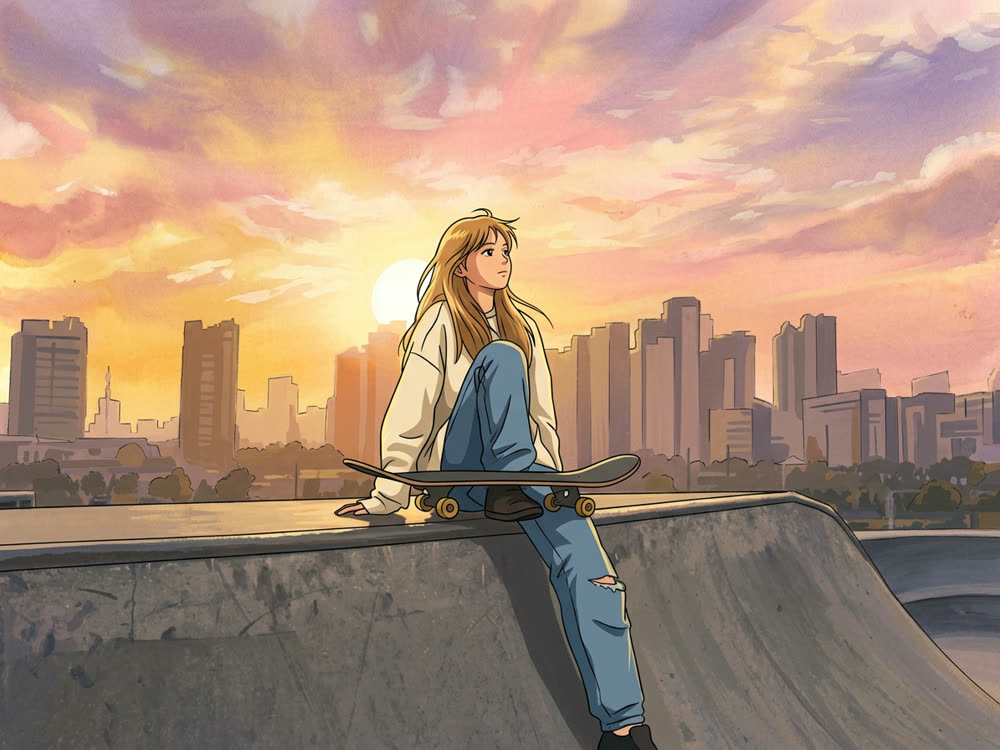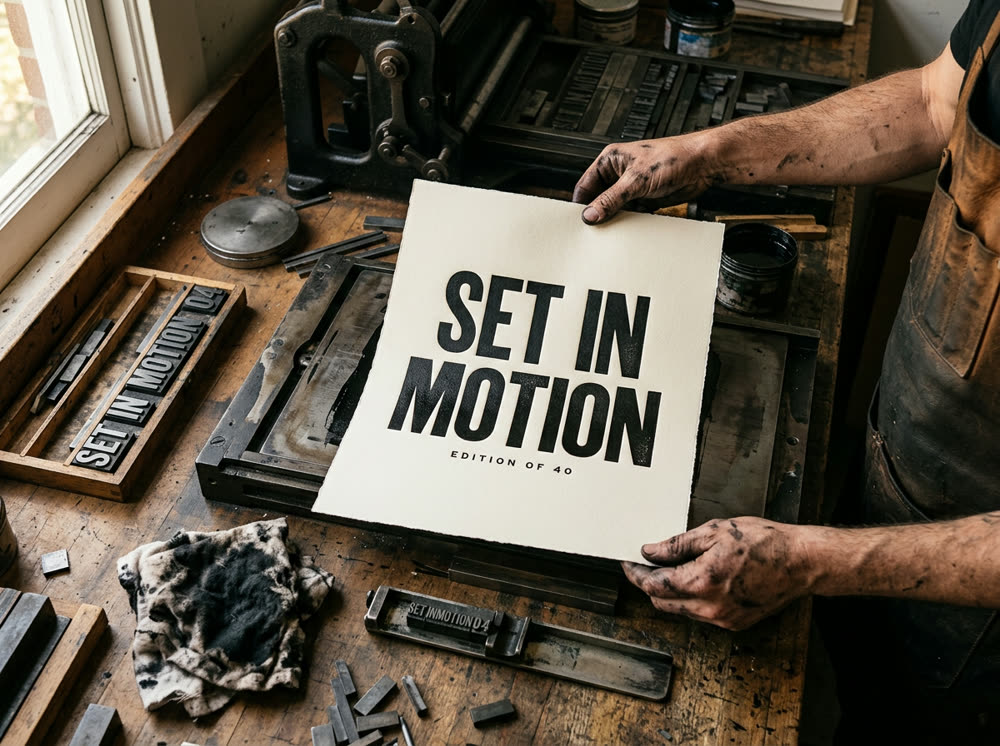
To use Grok Imagine for images, open the Image studio, click the Model card and choose Grok Imagine, write the picture in the Prompt, set the Aspect and Variants, and press Generate. One image costs 5 credits, one of the lowest prices in the studio. For video, choose Grok Imagine in the Video studio: a 6 second clip costs 55 credits at 480p and 80 at 720p.
Grok Imagine is the image and video generator from xAI, the one built into Grok. On Kinoseed it runs in the browser next to other models, so you can try the same prompt on several and keep the best. This guide covers both uses, prompts and prices.
What you need
- A prompt, or a photo to edit or animate.
- If a photo shows a real person, use your own or one you have their permission to edit.
- A Kinoseed account and some credits. Generating starts with a plan; the $10 Basic plan (500 credits a month) covers 100 Grok Imagine images at Variants 1.
Step by step
- 1
Open the Image studio and choose Grok Imagine
The Model card shows Seedream 5.0 · Lite, the default. Click it and pick Grok Imagine. The Grok Imagine image model page opens the studio with it selected.
- 2
Write the Prompt, with the style in it
Grok Imagine covers a wide range of looks, so name the style first: photo, anime, watercolor, 3D render, comic panel. Then the subject, the setting and the light.
- 3
Add a Reference to edit a photo (optional)
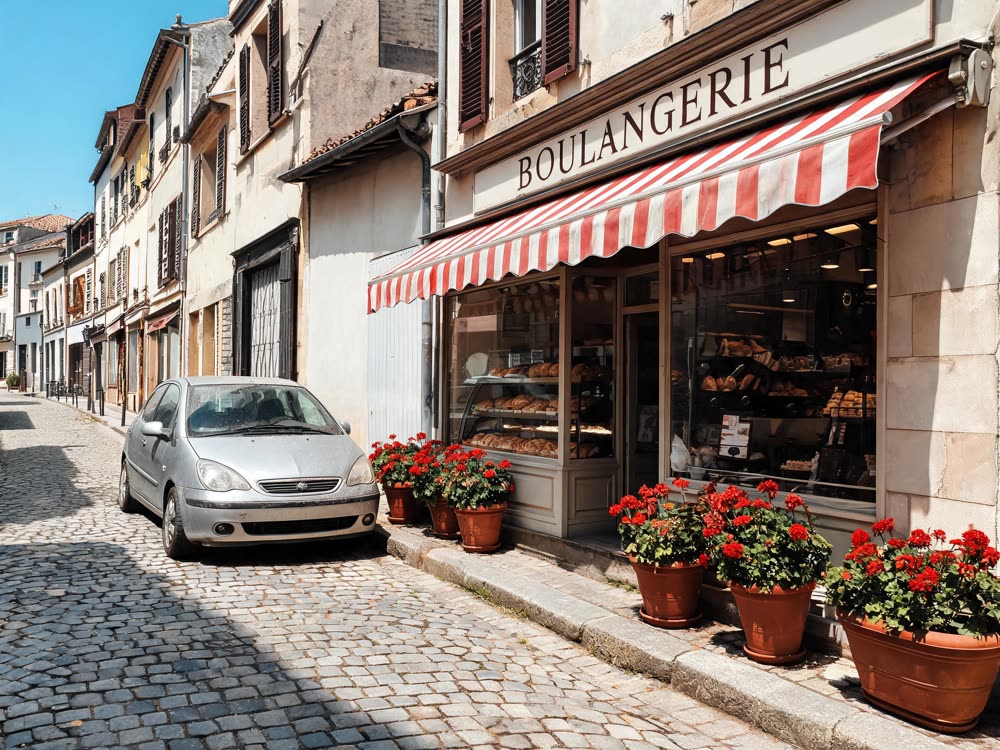
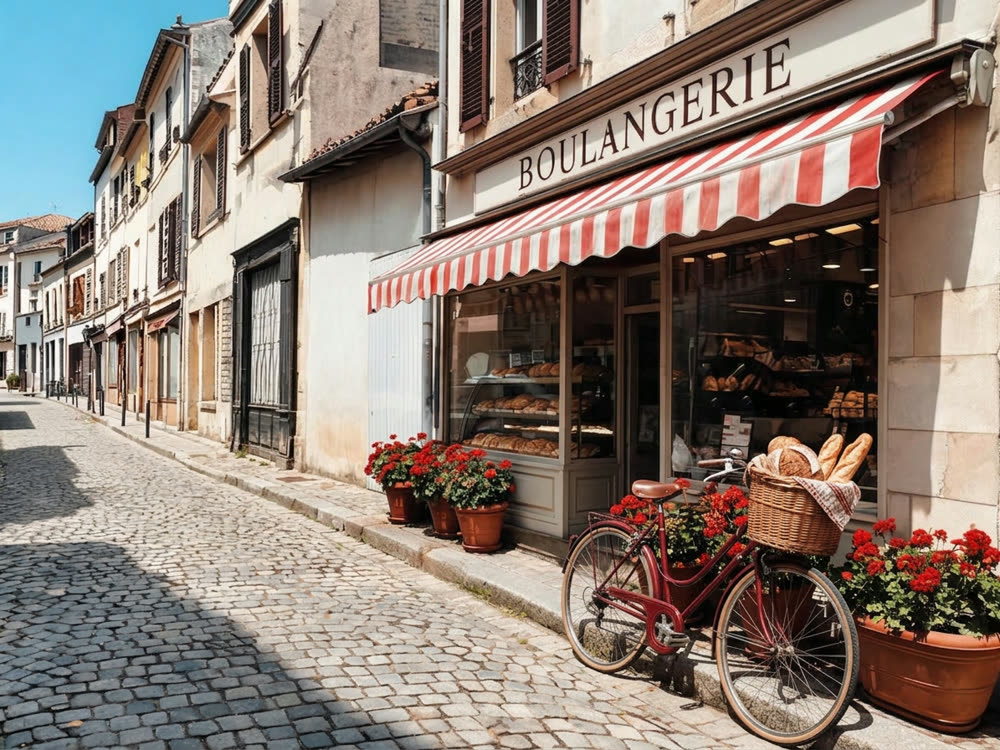
Drop a photo into Reference (optional) and describe the change; the studio sends it to the Grok Imagine edit model. It costs 5 credits an image.
- 4
Set the Aspect and Variants, then press Generate
Aspect is 1:1, 4:5, 3:4, 3:2, 16:9 or 9:16; Variants is 1, 2, 4 or 8 images per run. 4 images cost 16 credits and 8 cost 30. Results land in the feed, with no watermark, and a failed run is refunded.
- 5
For video, open the Video studio and choose Grok Imagine
Pick Grok Imagine on the Model card, write the shot or add a Start frame, choose 16:9, 9:16 or 1:1 and 480p or 720p, and press Generate Video. Every clip is 6 seconds. The Grok Imagine model page opens the studio with it selected.
Prompts to copy
Paste any of these into Image studio as a starting point, then change the details to fit your photo.
Anime still
Anime style, a girl on a bicycle crossing a railway at sunset, cherry blossoms in the wind, warm orange sky, detailed background.
Stylized product
3D render of a pastel pink headphone floating over a soft cloud, glossy plastic, studio lighting, clean pastel background.
Photo
Street photo of an old man playing chess in a park in autumn, fallen leaves, overcast light, 35mm film look.
Short video
A paper boat drifts down a rain-filled gutter past glowing shop windows at night, the camera following low at water level.
What it costs
Images: 5 credits for 1, 16 for 4, 30 for 8; 5 for an edit with a Reference. For comparison, FLUX.2 costs 7 an image. Video: 55 credits for a 6 second clip at 480p, 80 at 720p. See pricing.
When to use Grok Imagine
It is a cheap way to explore styles: run a prompt at Variants 8, pick the look, then keep it or redo it on a model with more photographic detail. Side by side pages: Grok Imagine vs FLUX.2 and Grok Imagine vs Veo 3.1.
More examples
Tips for better results
- Put the style in the first words of the prompt; it steers the whole picture.
- Use Variants 8 to see several takes at once, since each image is cheap.
- For an edit, say what must stay the same.
- For video, keep to one action: 6 seconds fits one movement and one camera move.
- To animate a still you like, add it as the Start frame in the Video studio.
Frequently asked questions
Can I use Grok Imagine without the Grok app?
Yes. Kinoseed runs it in the browser: Grok Imagine in the Image studio and Grok Imagine in the Video studio.
How much does Grok Imagine cost on Kinoseed?
Generating starts with a plan. An image costs 5 credits, a 6 second video 55 credits at 480p. The price is on the button before you run it.
How long are Grok Imagine videos?
Every clip is 6 seconds, at 480p or 720p, in 16:9, 9:16 or 1:1.
Can Grok Imagine edit a photo?
Yes. Add the photo as the Reference in the Image studio and describe the change.
Try it on your own photo.
Image studio is open to explore. The price of a run is on the button before you spend anything.