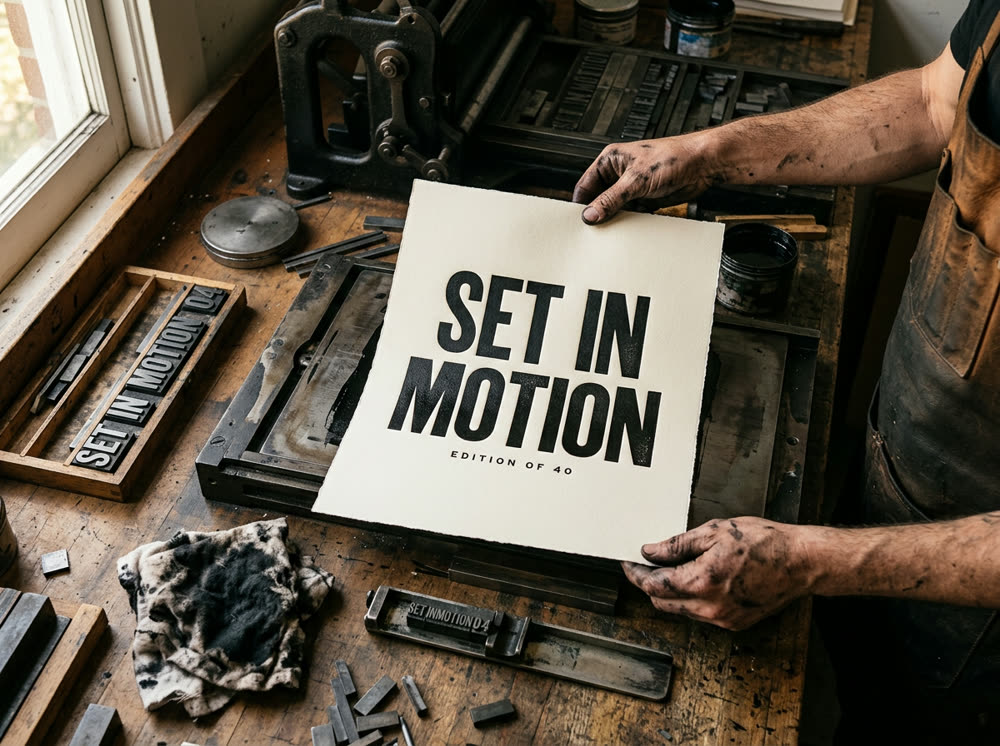
To use FLUX.2, open the Image studio, click the Model card and choose FLUX.2, type the picture you want in the Prompt, set the Aspect and Variants, and press Generate. To edit a photo, add it as the Reference and describe the change. One FLUX.2 image costs 7 credits, and a run of 8 costs 45.
FLUX.2 is the second generation of FLUX from Black Forest Labs; Kinoseed runs FLUX.2 [pro]. It suits photographic shots, products and scenes with clear lighting, at a low price per image. This guide covers the steps, prompts it follows, and when another model is the better pick.
What you need
- A prompt: the kind of picture, the subject, the setting and the light.
- Optional: a photo to edit, added as the Reference. If it shows a real person, use your own photo or one you have their permission to edit.
- A Kinoseed account and some credits. Generating starts with a plan; the $10 Basic plan (500 credits a month) covers 71 FLUX.2 images at Variants 1.
Step by step
- 1
Open the Image studio and choose FLUX.2
The Model card at the top shows Seedream 5.0 · Lite, the default. Click it and pick FLUX.2. The FLUX.2 model page opens the studio with it already selected.
- 2
Leave Reference empty for text to image, or add a photo to edit
With Reference (optional) empty, the image comes from your words alone. Drop a photo into Reference to change it the way you describe: a new background, a new season, a product in a new scene. One image with a Reference costs 7 credits.
- 3
Write the Prompt
Start with the kind of picture and the subject, then the setting, the light and the lens: "Product photo of a glass perfume bottle on wet black slate, a single hard light from above, dark background". For an edit, say what should change and what must stay: "Move this bottle onto a sunlit marble counter. Keep the bottle and its label exactly as they are."
- 4
Set the Aspect and Variants
Aspect is 1:1, 4:5, 3:4, 3:2, 16:9 or 9:16. Variants is how many images one run returns: 1, 2, 4 or 8. On FLUX.2, 1 image is 7 credits, 4 are 25 and 8 are 45.
- 5
Press Generate
The price is on the button. Results land in the feed beside the controls, where you can open one full size, download it, or run the same settings again for a variation. There is no watermark, and a failed run is refunded automatically.
Prompts to copy
Paste any of these into Image studio as a starting point, then change the details to fit your photo.
Product photo
Product photo of a matte black water bottle standing on a mossy rock beside a mountain stream, morning mist, soft light from behind, shallow depth of field.
Portrait in natural light
Portrait of a ceramic artist at her wheel, hands covered in clay, window light from the left, warm tones, 50mm lens, documentary photo.
Interior
Wide photo of a small Scandinavian living room, pale wood floor, a green sofa, late afternoon sun across the wall, plants by the window, real estate photography.
Edit with a Reference
Place this sneaker on a city rooftop at sunset, the skyline soft in the background. Keep the sneaker, its colours and its logo exactly as they are.
What FLUX.2 costs, next to other models
FLUX.2 costs 7 credits an image, the same with or without a Reference. For comparison, FLUX 3, the newer FLUX, costs 10; Nano Banana Pro 30; and GPT Image 2 25. Every plan includes all of them; see pricing.
When to use FLUX.2, and when not
Use FLUX.2 when you want many photographic options at a low price: try a prompt at Variants 4 or 8 and keep the best. For posters and ads where every word must be spelled right, the studio describes GPT Image 2 as the model for text. To compare the two side by side, see FLUX.2 vs GPT Image 2 and FLUX 3 vs FLUX.2.
More examples
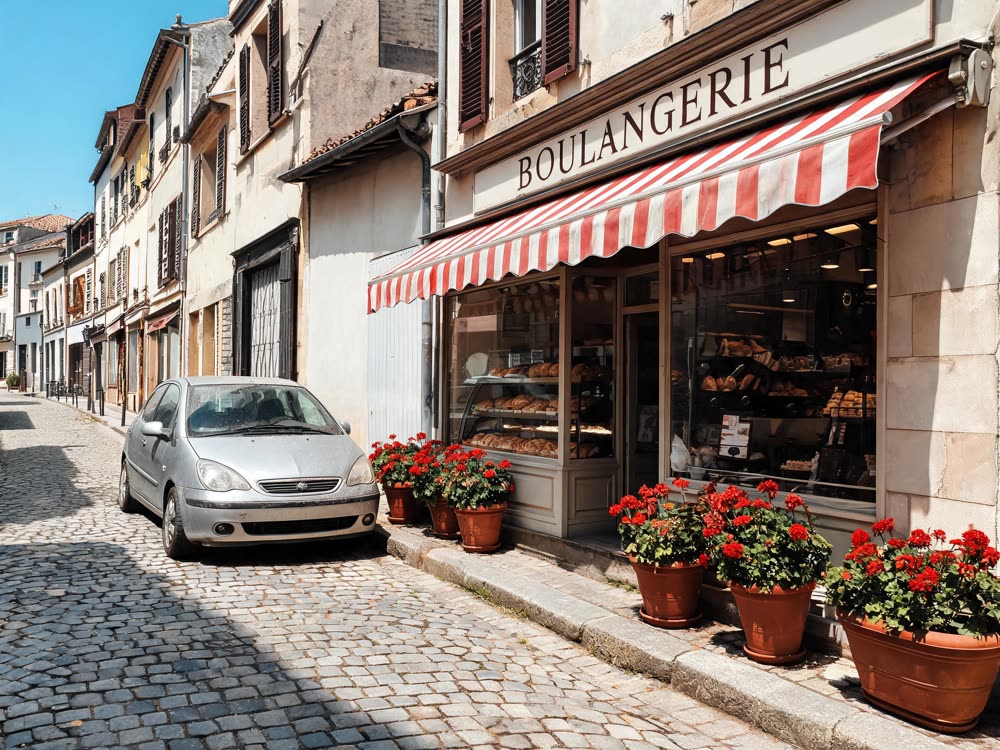
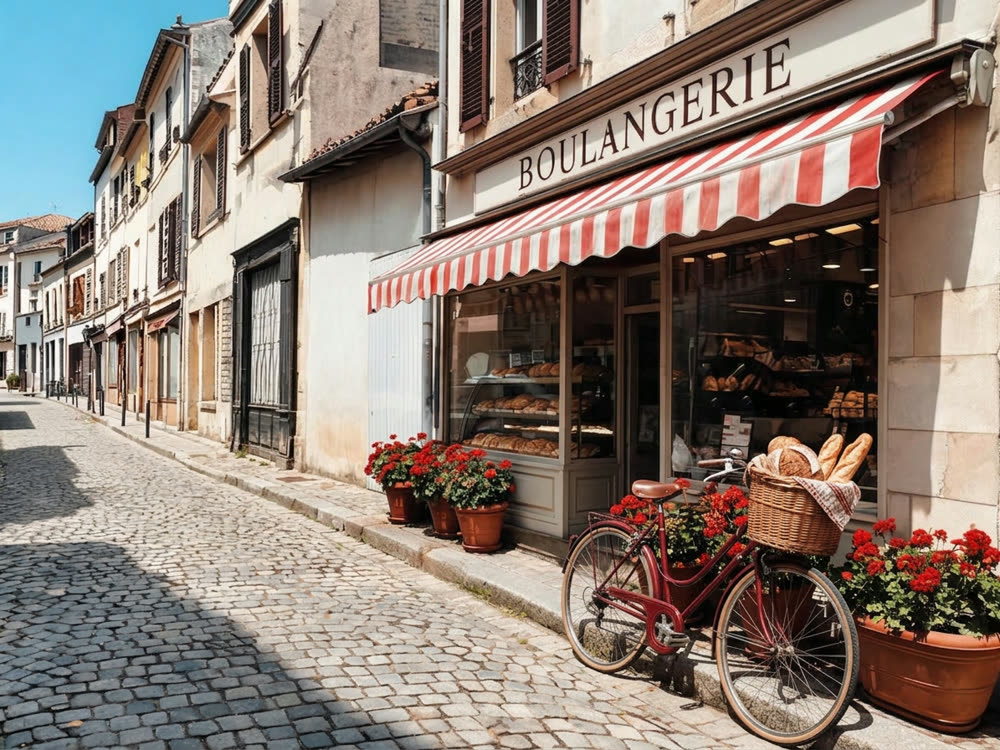
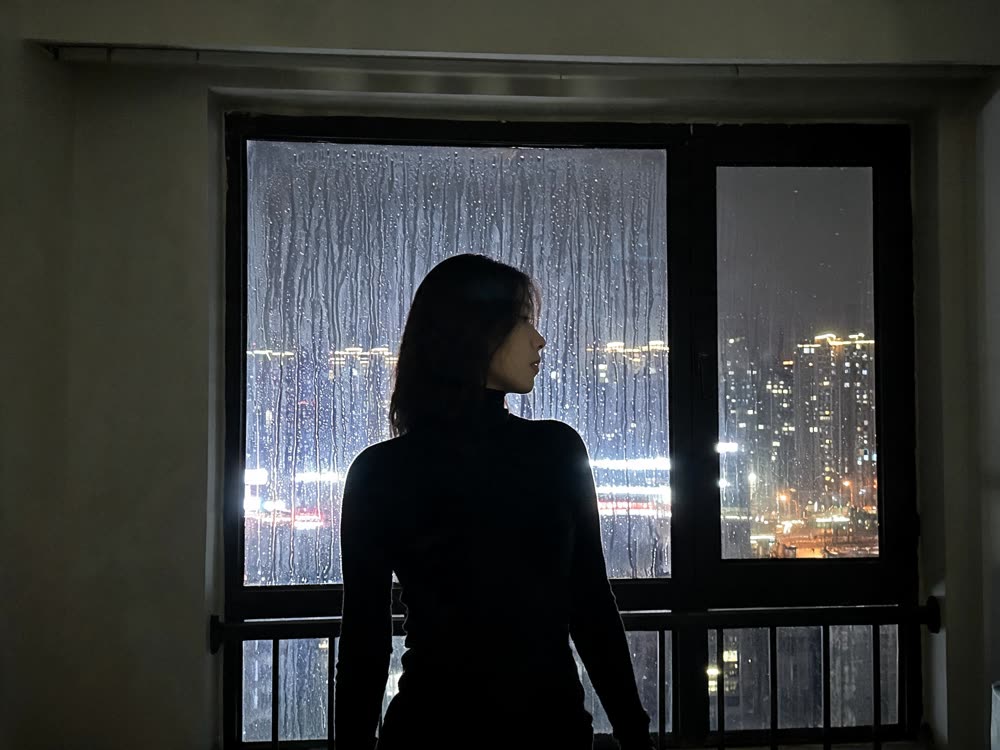
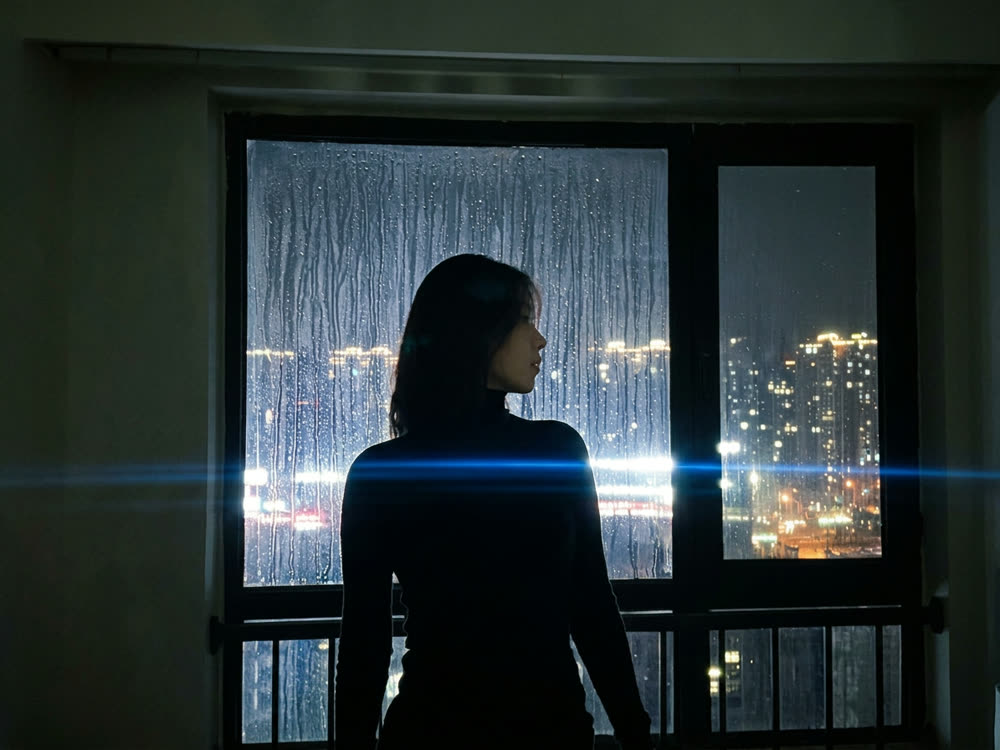
Tips for better results
- Set Variants to 4 while you shape the prompt, then run the winner again with small changes.
- Name the light and the lens. Words such as window light, hard light from above or 50mm do more for realism than adjectives like stunning.
- For an edit, say what must stay the same, or the model may restyle things you wanted kept.
- Keep one subject per prompt. Two products or two people in one sentence tend to merge.
- To make the image move, open it in Image to Video.
Frequently asked questions
Where can I use FLUX.2 online?
In the Kinoseed Image studio: choose FLUX.2 on the Model card, write a prompt and press Generate. It runs in the browser, with no install.
How much does FLUX.2 cost?
Generating starts with a plan. One FLUX.2 image costs 7 credits, 4 cost 25 and 8 cost 45. The exact price is on the Generate button before you run it.
Can FLUX.2 edit my photo?
Yes. Add the photo as the Reference and describe the change. The price is the same as from text, 7 credits an image.
What is the difference between FLUX.2 and FLUX 3?
FLUX 3 is the newer model from the same lab and costs 10 credits an image against 7. FLUX.2 returns up to 8 images a run, so it is the cheaper way to explore a prompt. See how to use FLUX 3.
Try it on your own photo.
Image studio is open to explore. The price of a run is on the button before you spend anything.