Inpaint
Brush a mask over the part you want gone or changed, then say what belongs there instead. Everything outside the mask stays exactly as it was.
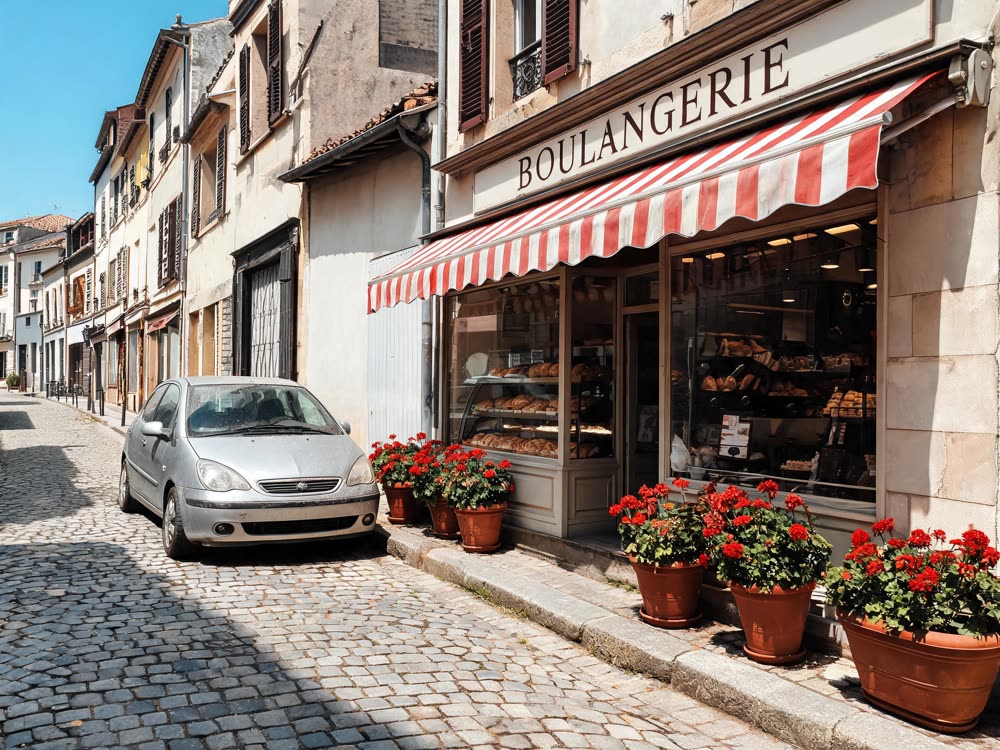
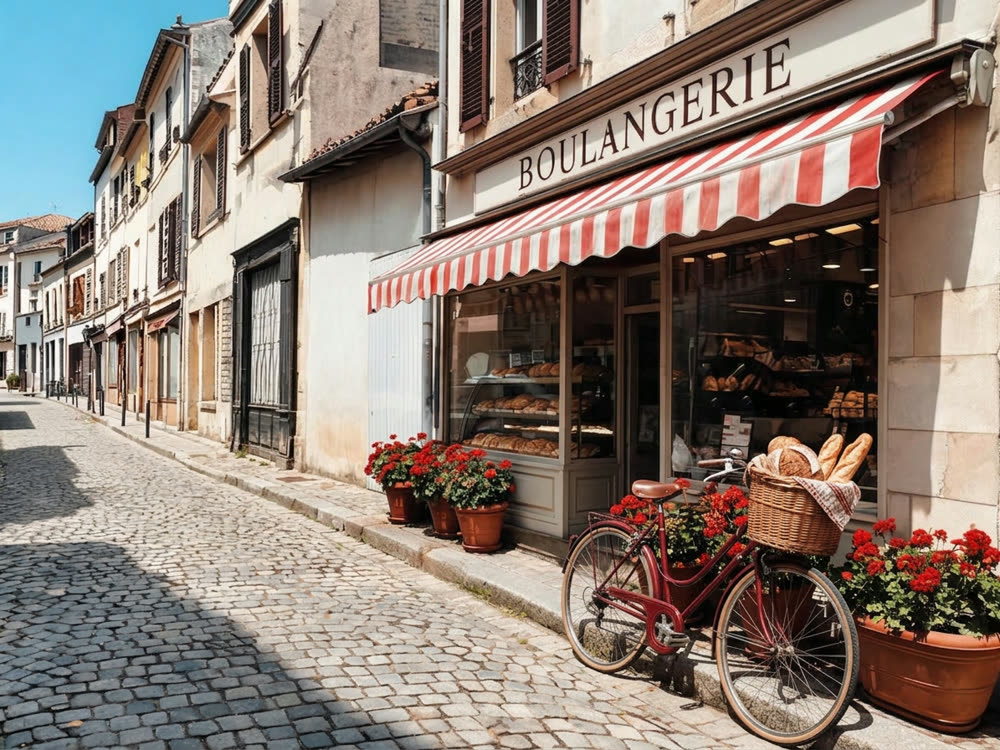
Paint a mask over any area, then describe what belongs there instead.
How to replace or remove part of an image
- 1
Upload an image
PNG, JPG or WEBP. Anything past 2048px on its long edge is scaled down before you paint.
- 2
Brush over what should change
Paint the mask, trim it with the eraser, then say what belongs there. Leave the prompt empty to remove what is under the mask instead.
- 3
Generate and keep going
Only the masked area is redrawn. Edit further loads the result back as the new source, so you can mask the next thing.
Explore more apps
See all
Also in: Deutsch · Español · Português · Français
Inpaint: questions and answers
›What is AI inpainting?
Inpainting regenerates only a part of an image. You paint a mask over the area, describe what should be there instead, and the model redraws just that region while the rest of the picture stays untouched.
›Can I use inpainting to remove objects from a photo?
Yes. Paint over the object and leave the prompt empty, and the masked area is cleaned up instead of replaced. You can trim the mask with the eraser before you run it.
›Which AI model does the inpainting?
Nano Banana 2 by default. You can switch to another image model that supports editing, such as Nano Banana Pro, and the Generate button shows the cost for the model you picked.
›What image sizes and formats are supported?
PNG, JPG or WEBP. Anything past 2048 pixels on its long edge is scaled down before you paint.
›Can I make several edits to the same image?
Yes. Edit further loads the result back in as the new source, so you can mask and change the next thing. Each run is a separate edit with its own cost.
Articles about Inpaint
- How to Remove or Replace Objects in a Photo with AI · Paint over anything in a photo and remove it, or swap it for something new. A practical guide to AI inpainting, with prompts you can copy.