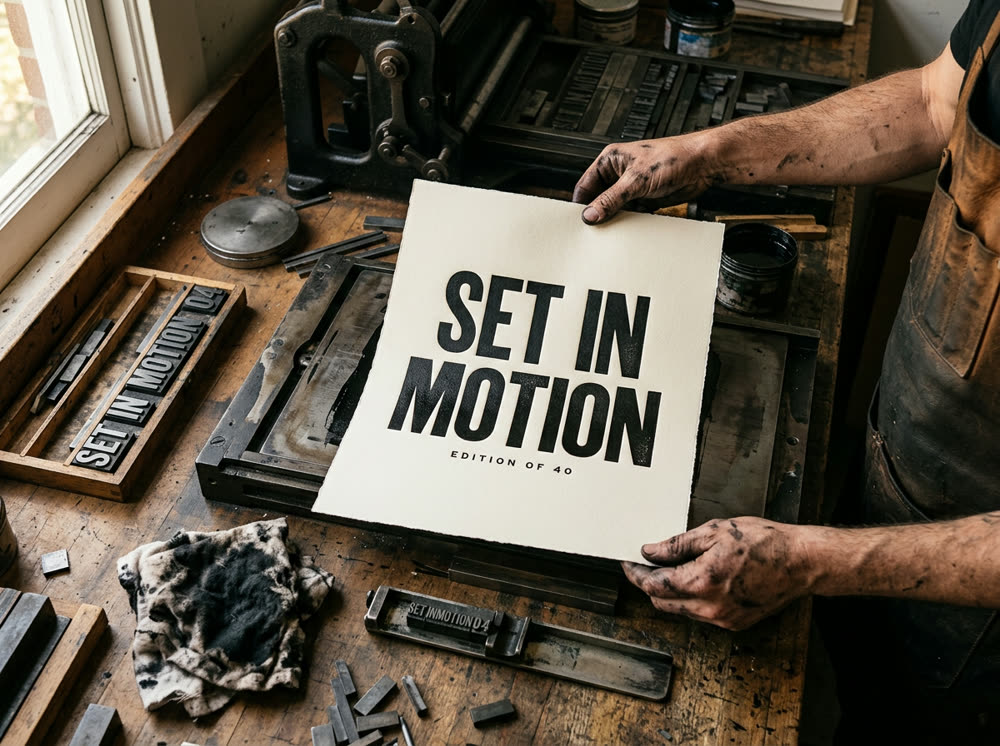
To make a poster or ad with exact text using AI, open the Image studio, switch the Model to GPT Image 2, write the prompt with every word that must appear in quotes, set Variants to 1 and press Generate. GPT Image 2 is the model the studio lists for near-perfect text rendering, posters and graphics. One image costs 25 credits.
Garbled letters are the usual reason people give up on AI posters. Most of it comes down to three things: a model that renders type well, a short headline in quotes, and a prompt that says where the words go and in what kind of type. This article covers all three, and what to do when one letter still comes out wrong.
What you need
- The exact words: a headline of a few words, plus at most a line or two of small print such as a date or a web address.
- Optional: your product photo or logo, added as a Reference so the picture is built around it.
- A Kinoseed account and some credits. Generating starts with a plan; the $10 Basic plan (500 credits a month) covers 20 GPT Image 2 images at Variants 1.
Step by step
- 1
Open the Image studio and choose GPT Image 2
The Model card at the top shows Seedream 5.0 · Lite, the default. Click it and pick GPT Image 2; the card then shows its name. Nano Banana Pro is the other strong choice for type, at 30 credits an image.
- 2
Add a Reference if the poster is for your product
Drop your product photo or logo into Reference (optional). It conditions the whole composition, so the poster is built around it. Leave it empty for a poster made from words alone.
- 3
Write the Prompt with the words in quotes
Say what kind of picture it is first (poster, flyer, social ad), then the image, then the text: what it says, in quotes, where it sits and how it looks. For example: a headline at the top reading "OPEN LATE" in heavy condensed capitals, and small type at the bottom reading "FRIDAYS FROM 9". The prompt takes up to 2,000 characters.
- 4
Set the Aspect and Variants
Aspect is a dropdown: 1:1, 4:5, 3:4, 3:2, 16:9 and 9:16. Use 3:4 or 4:5 for a print poster or a feed ad, and 9:16 for a story. Set Variants to 1 while you test the wording: on GPT Image 2, 1 image costs 25 credits and 4 cost 95.
- 5
Press Generate and check every letter
The price is on the button. Open the result full size and read the text slowly, letter by letter, before you use it. There is no watermark, and a failed run is refunded automatically.
Prompts to copy
Paste any of these into Image studio as a starting point, then change the details to fit your photo.
Event poster
A bold screen-printed event poster: a single neon-pink saxophone on a deep navy background, flat colours, visible ink texture. At the top, a headline reading "JAZZ ON THE ROOF" in heavy condensed sans-serif capitals. At the bottom, small letterspaced type reading "SATURDAY 8 PM".
Product ad
A clean social media ad built around the product in the reference image, standing on a pale stone plinth, soft daylight, lots of empty space above it. Above the product, a headline reading "MADE FOR MORNINGS" in a modern serif. Under it, a small line reading "Shop now".
Shop window sign
A photograph of a hand-painted sign in a bakery window, gold letters with a thin black outline on the glass, reading "FRESH BREAD DAILY", warm interior light behind, morning street reflections in the glass.
Why the words come out wrong, and how to avoid it
Long text is the main cause. A headline of two to five words and one line of small print render far more reliably than a paragraph, so keep the body copy for your layout tool and let the model draw the headline.
Say every word once, in quotes, and say where it goes: "at the top", "on the bottle", "under the headline". Unquoted words in the prompt sometimes end up in the picture too. Naming the type helps as well: condensed capitals, a modern serif, hand lettering.
If one letter is still off, you do not need a new poster. Open the result in Inpaint, brush over the wrong word and type what it should say in the bar under the canvas. Only the painted area changes.
What it costs
GPT Image 2: 25 credits for one image from a prompt, 30 with a Reference, 95 for 4. Nano Banana Pro costs 30 an image, and Seedream 5.0 · Lite, the studio default, 8. The Starter plan's 1,200 monthly credits cover 48 GPT Image 2 images at Variants 1. See pricing.
Which of the two text models suits your poster is covered in Nano Banana Pro vs GPT Image 2, and each has its own page: GPT Image 2 and Nano Banana Pro.
More examples
Tips for better results
- Keep the headline short. Two to five words is the sweet spot; split anything longer into a headline and one small line.
- Use capitals for the headline. Bold condensed capitals are the easiest letterforms to render cleanly.
- Leave room for the words. Ask for empty space where the text goes, such as "plain sky above the product".
- Want the poster to move? Put the finished image through Image to Video and ask for a slow push in; text can shift in motion, so check it again.
Frequently asked questions
Which AI model is best for text in images?
In the Image studio, GPT Image 2 is the one listed for near-perfect text rendering and posters, at 25 credits an image. Nano Banana Pro also handles text well, at 30. Either way, short quoted lines spell most reliably.
What does an AI poster cost?
Generating starts with a plan. One GPT Image 2 image costs 25 credits, so the $10 Basic plan (500 credits a month) covers 20 at Variants 1.
Can I put my own logo or product in the poster?
Yes. Add it as the Reference and describe where it sits. The model redraws it as part of the picture, so check small marks and lettering on it closely. With a Reference, one GPT Image 2 image costs 30 credits.
Can I use the poster in ads?
There is no watermark, and Kinoseed's terms say you keep ownership of the outputs you generate, subject to the underlying model providers' terms. Use only your own brand names and marks, and check your ad platform's rules on labelling AI content.
Try it on your own photo.
Image studio is open to explore. The price of a run is on the button before you spend anything.