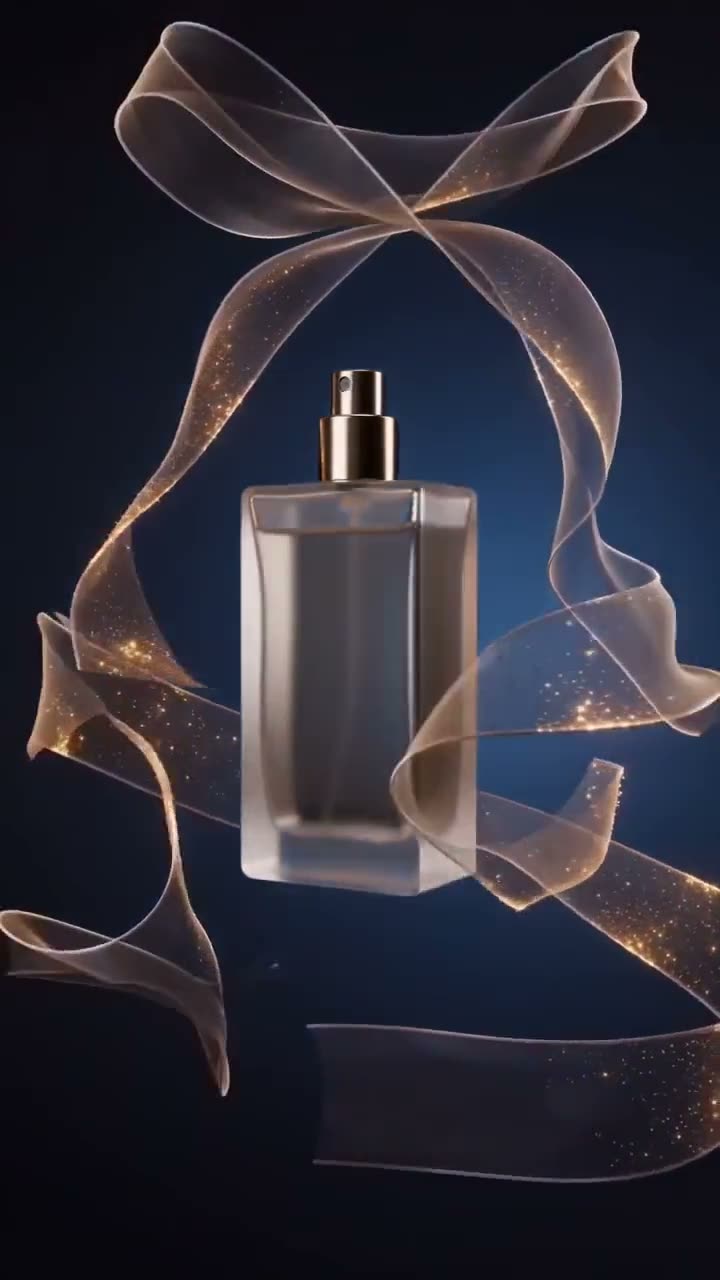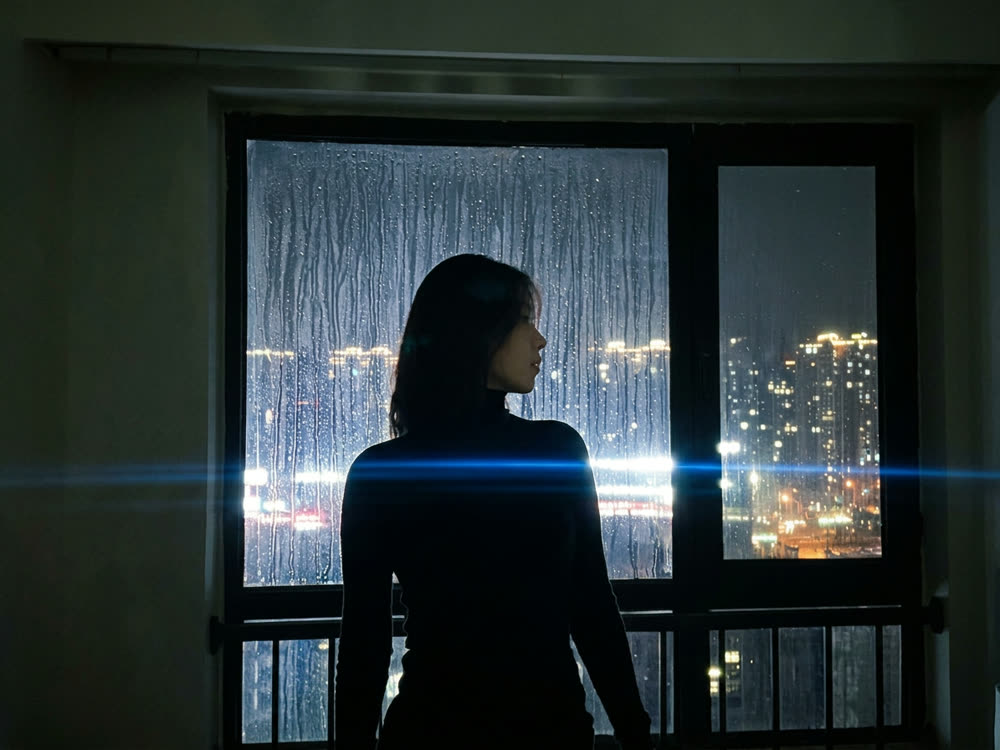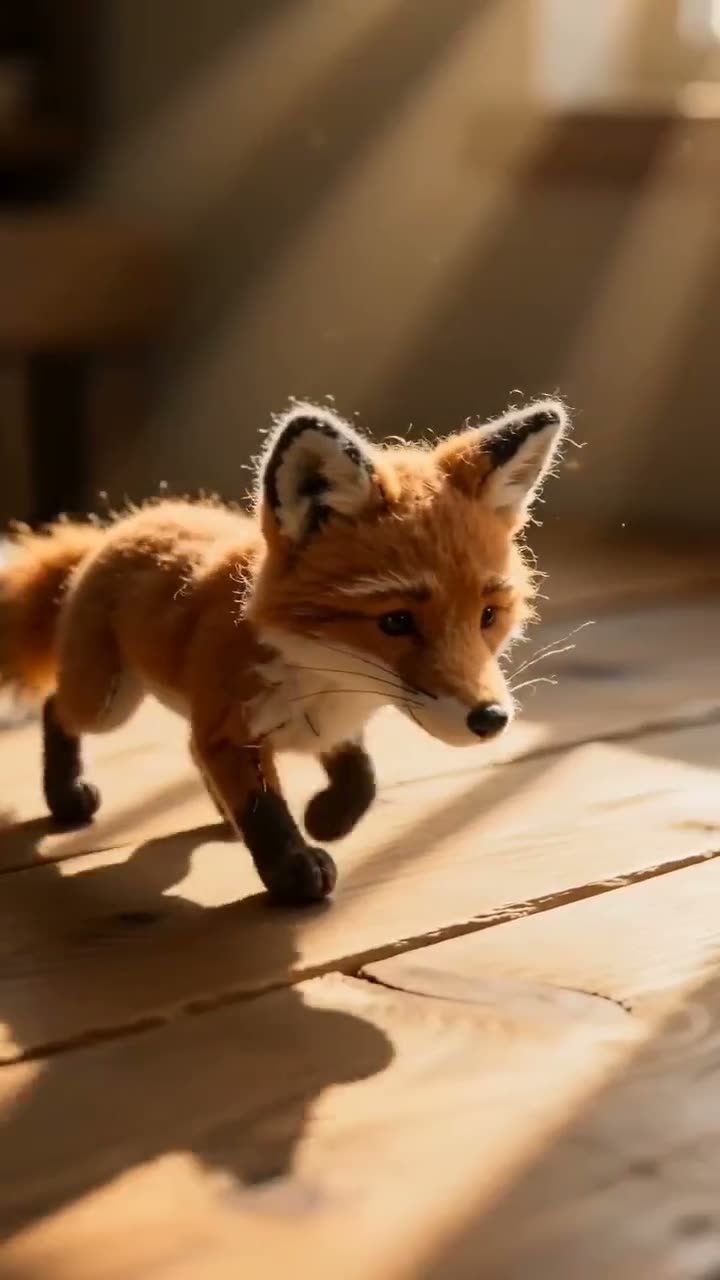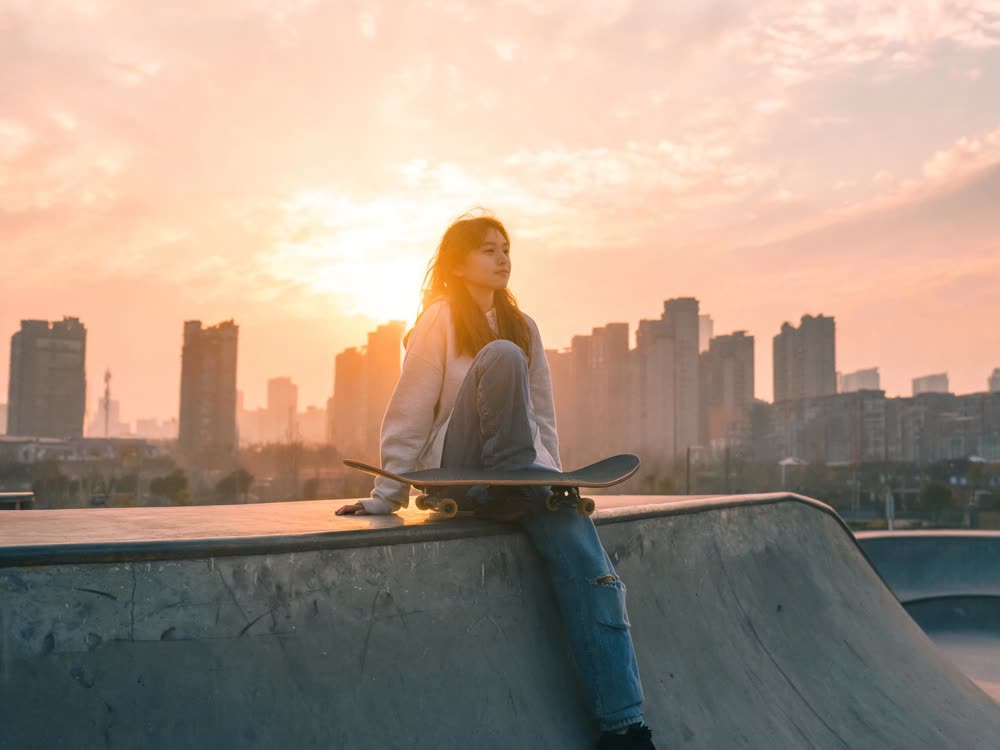
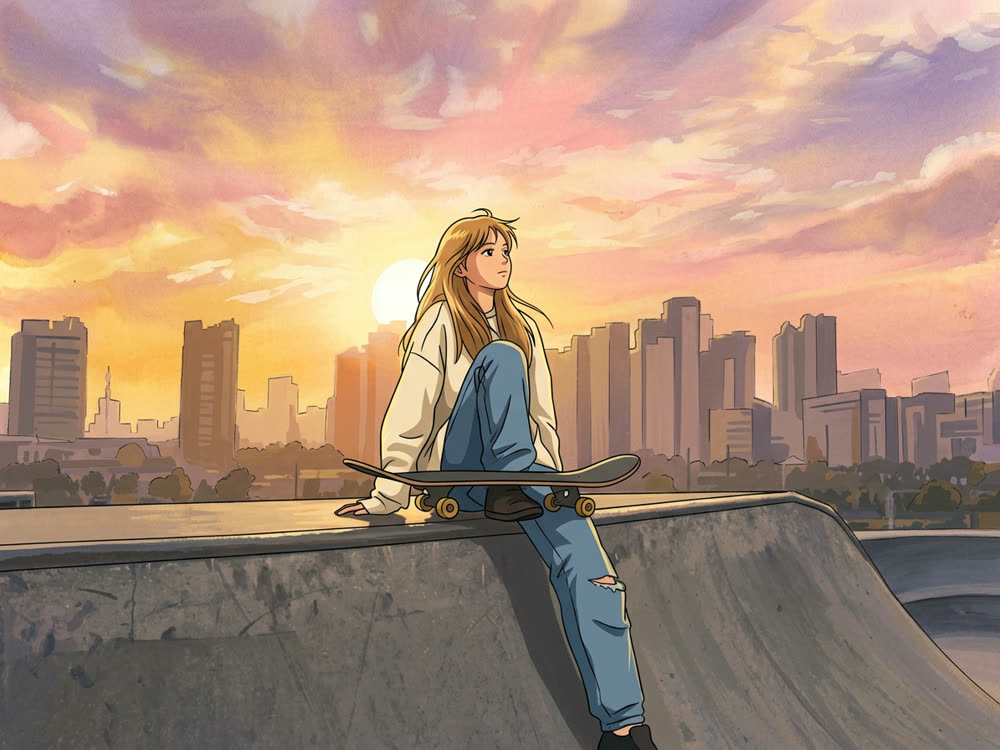
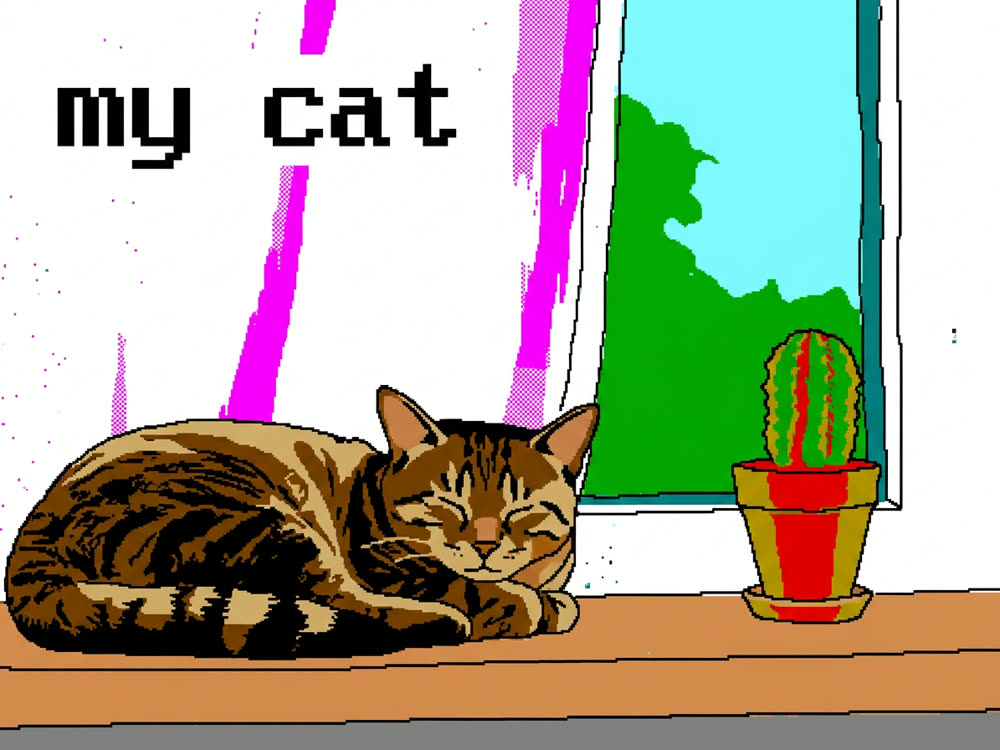
To turn a photo into anime or a painting with AI, upload it to Style Snap, pick a Style (90s anime, Oil paint, Watercolour, Risograph, Film noir, Claymation, Flat vector or Pencil), choose How far to push it, and press Restyle. Nano Banana 2 redraws the same picture in that medium: the pose, the composition and the colours stay, and only the way it is made changes. One restyle costs 16 credits.
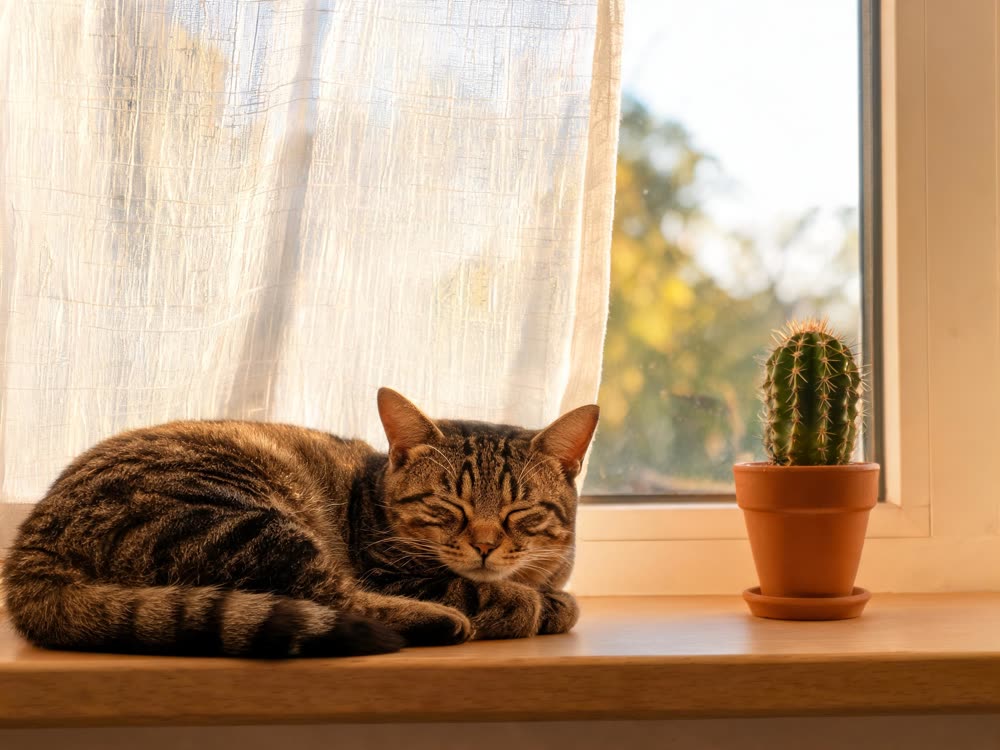
People often ask a chatbot for an anime version of a photo and get a new picture that only looks a bit like theirs. A restyle works the other way round: your photo is the starting point, so the result is still your shot. This article covers the controls in order, what each style and strength does, and what a run costs.
What you need
- One photo that already reads well. Composition is what carries across, so a clear subject and a simple background come back best.
- A Kinoseed account and some credits. Generating starts with a plan; the $10 Basic plan (500 credits a month) covers 31 restyles at Count 1.
- If there is a person in the photo, it should be you or someone who has agreed to it.
Step by step
- 1
Upload image
Open Style Snap and drop your photo into Upload image. Any photograph works: a portrait, a pet, a street, a product. The framing you upload is the framing you get back.
- 2
Pick a Style
There are 8: 90s anime, Oil paint, Watercolour, Risograph, Film noir, Claymation, Flat vector or Pencil. 90s anime gives flat inked outlines, limited cel shading and painted backgrounds. Oil paint adds thick strokes and canvas texture, Watercolour bleeding edges with white paper showing through, and Pencil cross-hatching and smudged shading.
- 3
Choose How far to push it
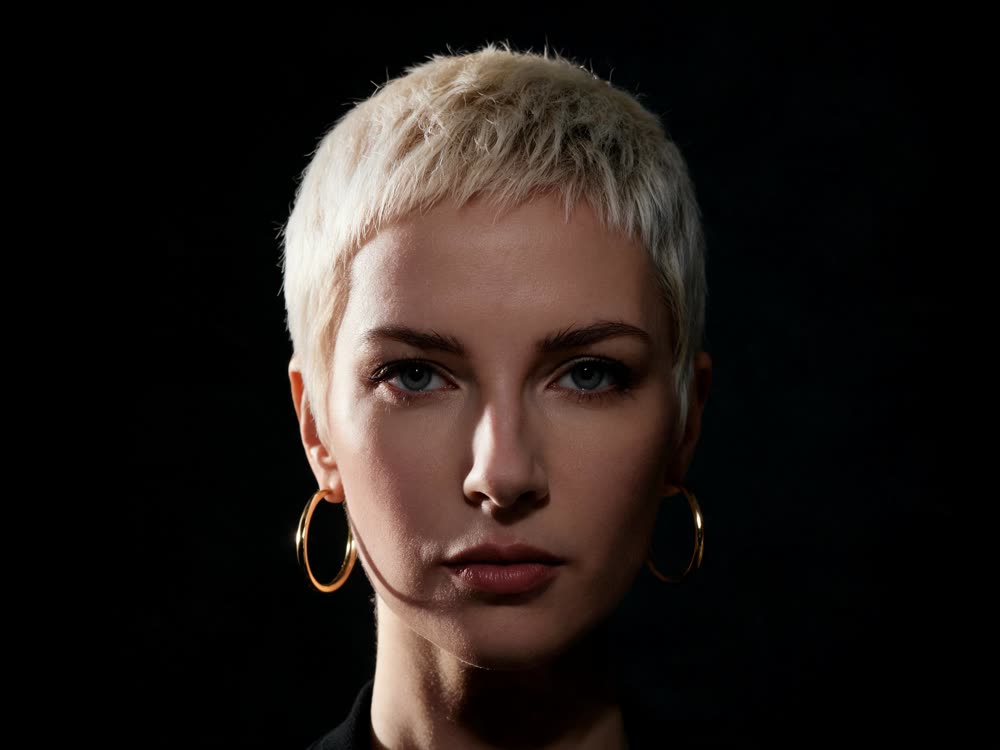
Light, Full or Extreme. Light keeps the photograph readable underneath, which suits portraits where the likeness matters. Full lets the medium replace the photograph, and Extreme exaggerates every trait of the medium for a bolder look.
- 4
Set Aspect and Count
Aspect is 1:1, 4:5, 3:2, 16:9 or 9:16, starting on 1:1. Match it to your photo so nothing is cropped or invented at the edges. Count is how many versions come back: 1, 2 or 4, with 2 selected, which costs 30 credits.
- 5
Press Restyle
The price is on the button before you press it. The results land in the feed beside the controls, ready to download, with no watermark. A failed run is refunded automatically.
Style Snap
Instant style variations
Open in appSign in to generate. The price of a run is on the button.
What it costs
Style Snap runs Nano Banana 2: 16 credits for 1 restyle, 30 for 2 and 60 for 4. The Starter plan's 1,200 monthly credits cover 75 single restyles. See pricing for every plan.
A style of your own, not someone else's
Each option is a medium, not a particular artist, studio, film or game. That keeps the result yours to post or sell, and it is also why the styles are described by how they look: inked outlines, impasto, halftone grain. If you want a look the list does not have, the Image studio takes your photo as a Reference and a prompt in your own words; describe the medium the same way, by its materials and marks.
Make it move
A restyled picture makes a good first frame for a short clip. Put it into Image to Video and describe a small motion, hair in the wind or a slow push in, and the clip keeps the drawn look. Our image to video article walks through it.
More examples
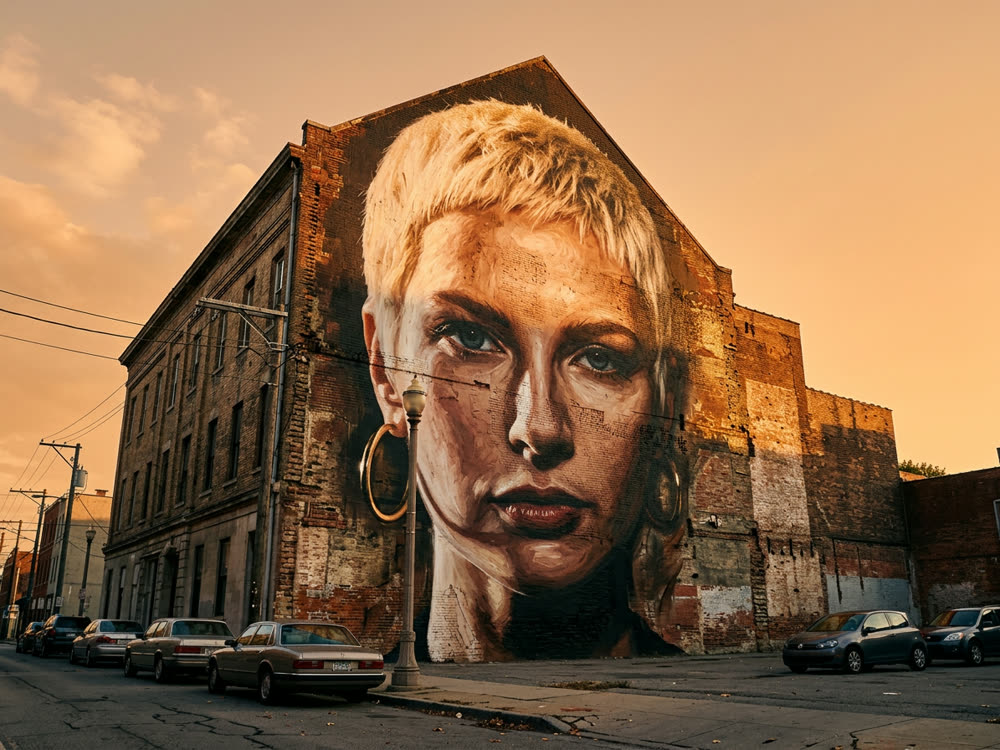
Tips for better results
- Start on Light for faces. It keeps the person recognisable; go to Full once you like the medium.
- Set Count to 1 while you try styles, then raise it for the one you will keep.
- Use a sharp photo. A small or blurry picture gives the model less to redraw; upscale it first.
- Try Risograph or Flat vector for posters and stickers. Flat ink and solid shapes print cleanly and read well small.
Frequently asked questions
What does turning a photo into anime cost?
Generating starts with a plan. One restyle at Count 1 costs 16 credits and the default Count of 2 costs 30; the $10 Basic plan (500 credits a month) covers 31 restyles at Count 1.
Will the person still look like themselves?
The prompt asks the model to keep the composition, the subject placement and the colours, so the pose and the scene stay. A drawn medium has fewer details than a photo, so Light keeps more of a face than Extreme. Check the result before you share it.
Can I make it look like a specific film, show or game?
Style Snap offers media, not named titles or artists, and Kinoseed's terms forbid content that infringes other people's intellectual property. Describe the look you want by its marks and materials instead, which also gives you a style nobody else owns.
Can I use the result commercially?
There is no watermark, and Kinoseed's terms say you keep ownership of what you generate, subject to the underlying model providers' terms. You need the rights to the photo you upload, and consent from anyone in it.
Try it on your own photo.
Style Snap is open to explore. The price of a run is on the button before you spend anything.