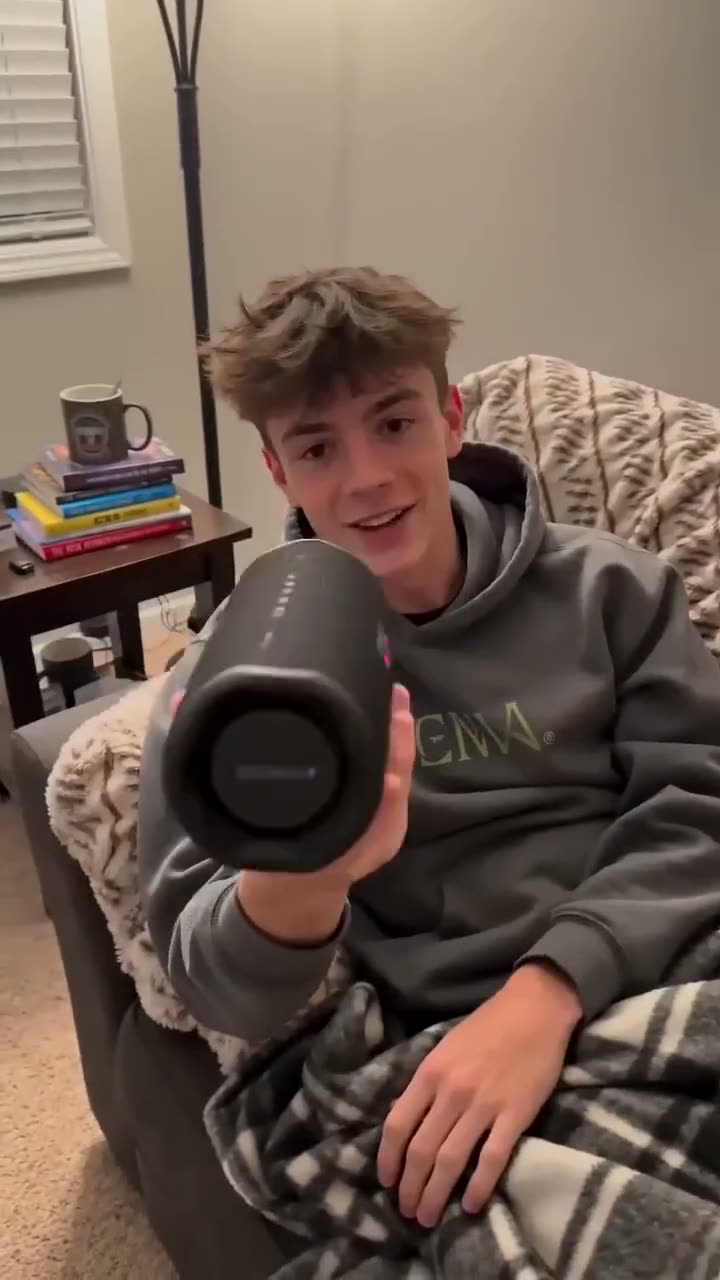
To make a talking avatar of yourself, record what you want to say (up to 30 seconds), open Lip Sync, upload a front-facing photo of yourself as the Portrait and the recording as the Audio, and press Generate Video. The mouth follows your words, in your own voice. It is priced by the second of audio: 8 credits for 15 seconds and 14 for 30. With no recording, put your photo in Start frame in the Video studio, pick Google Veo 3.1 Fast, tick Sound and write the line in the Prompt: 110 credits for 4 seconds at 720p.
A talking avatar is a video of your face saying a script: a course intro, a product explainer, a message for your team, a reply in another language. This guide covers both ways, how to pick the photo and record the voice, and what each costs.
What you need
- A photo of yourself: front-facing, sharp, evenly lit, mouth visible. Use only your own face or the face of someone who has agreed to it.
- For Lip Sync, a voice recording up to 30 seconds (MP3, WAV, OGG or M4A): your own voice, or one you have permission to use.
- A Kinoseed account with credits. Video starts with a plan; the $10 Basic plan (500 credits a month) covers 35 Lip Sync clips of 30 seconds.
Step by step
- 1
Write and record the script
Keep it under 30 seconds, about 70 spoken words. Record close to the phone in a quiet room; clean speech gives the clearest mouth shapes. Trim silence at the start and the end.
- 2
Pick the photo
Head and shoulders, facing the camera, nothing over the mouth or chin. A relaxed face with lips slightly apart moves more naturally than a big smile.
- 3
Open Lip Sync and upload the Portrait and the Audio
Drop the photo into Portrait and the recording into Audio. A clip longer than 30 seconds is flagged so you can trim it first. The price on the button follows the length of the audio.
- 4
Press Generate Video
The face is moved frame by frame to match the waveform. The video lands in the feed, ready to download as an MP4, with no watermark. A failed run is refunded automatically.
- 5
No recording? Have a studio model speak the line
In the Video studio, click the Model card and pick Google Veo 3.1 Fast, put your photo in Start frame, tick Sound, and write the line in quotes in the Prompt: She looks into the camera and says: "Hi, I'm Ana, and this is how our app works." The voice is generated, not yours. 110 credits for 4 seconds or 220 for 8 at 720p.
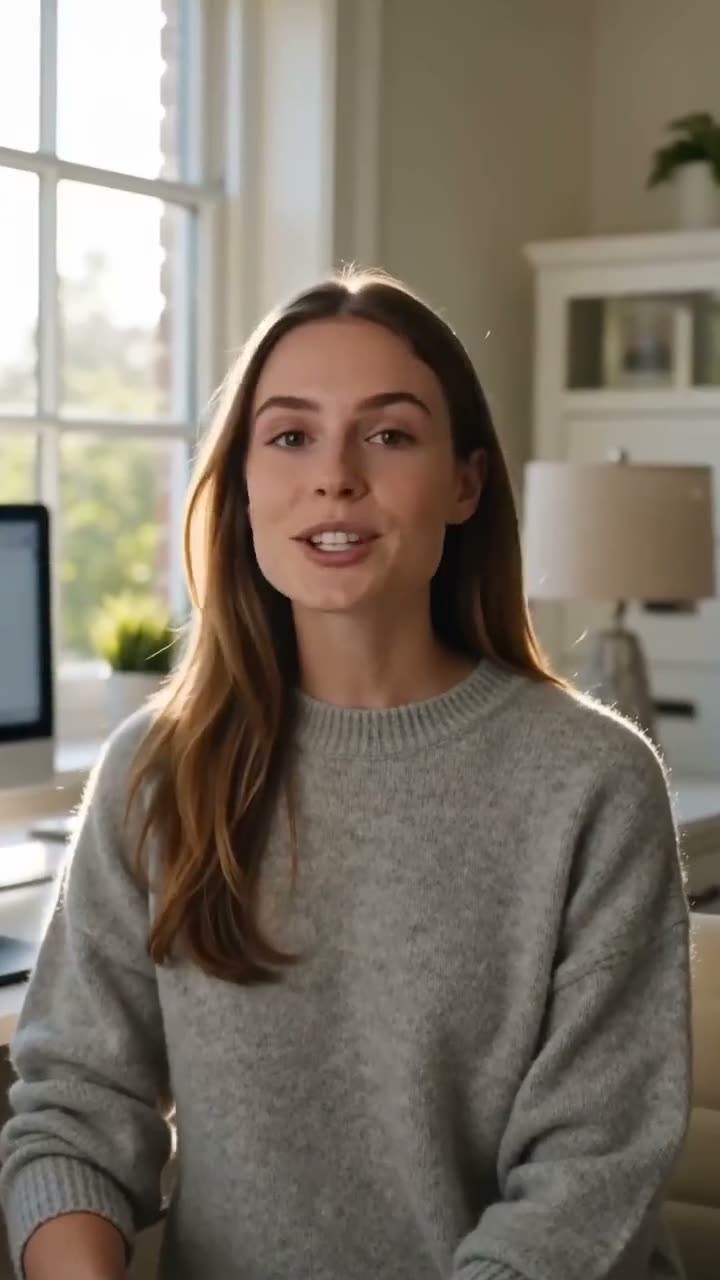
Lip Sync
Your portrait says your recorded words
Open in appSign in to generate. The price of a run is on the button.
Prompts to copy
Paste any of these into Lip Sync as a starting point, then change the details to fit your photo.
Spoken line on Google Veo 3.1 Fast
The woman in the photo smiles slightly, looks into the camera and says in a warm, clear voice: "Welcome to the course. In the next ten minutes you will set up your first project." Locked-off camera, soft window light.
Short product intro
The man in the photo nods and says, friendly and calm: "This is the bag I take everywhere. Here is why." Medium close-up, the camera still.
Lip Sync or a studio model
Lip Sync keeps your own voice and runs up to 30 seconds in one clip, at 8 credits for 15 seconds; the head moves little, so it reads as a talking head. A studio model with Sound moves the whole picture, face, hands and light, but the voice is made up and a clip is 4 to 8 seconds, at 110 credits for 4 seconds on Google Veo 3.1 Fast. For a script in your voice, Lip Sync; for a short scene with a line, the studio.
In another language
Lip Sync moves the mouth to whatever audio you give it. Record the script in the other language, or use a translated recording of your voice you have the rights to, and upload it with the same photo.
More examples
Tips for better results
- Light the face from the front; shadows across the mouth blur the lip movement.
- Leave a little room above the head and below the chin in the photo, so the motion is not cut off.
- Speak a touch slower than usual; very fast speech gives mushy mouth shapes.
- For a long script, record it in parts of up to 30 seconds and join the clips in an editor.
- For a song instead of speech, see how to make an AI music video of yourself.
Frequently asked questions
How do I make a talking avatar of myself from a photo?
Upload a front-facing photo of yourself as the Portrait in Lip Sync, add a recording of your voice up to 30 seconds as the Audio, and press Generate Video.
How much does a talking avatar video cost?
Video starts with a plan. Lip Sync is priced by the second of audio: 8 credits for 15 seconds, 14 for 30. A spoken line from a studio model on Google Veo 3.1 Fast is 110 credits for 4 seconds at 720p.
Can it use my own voice?
Yes, with Lip Sync: it moves the mouth to the recording you upload. A studio model with Sound makes up a voice instead.
Can I make an avatar of someone else?
Only of someone who has agreed to it, with their photo and a voice they agreed to. Otherwise use your own face and voice.
Try it on your own shot.
Lip Sync is open to explore. The price of a run is on the button before you spend anything.