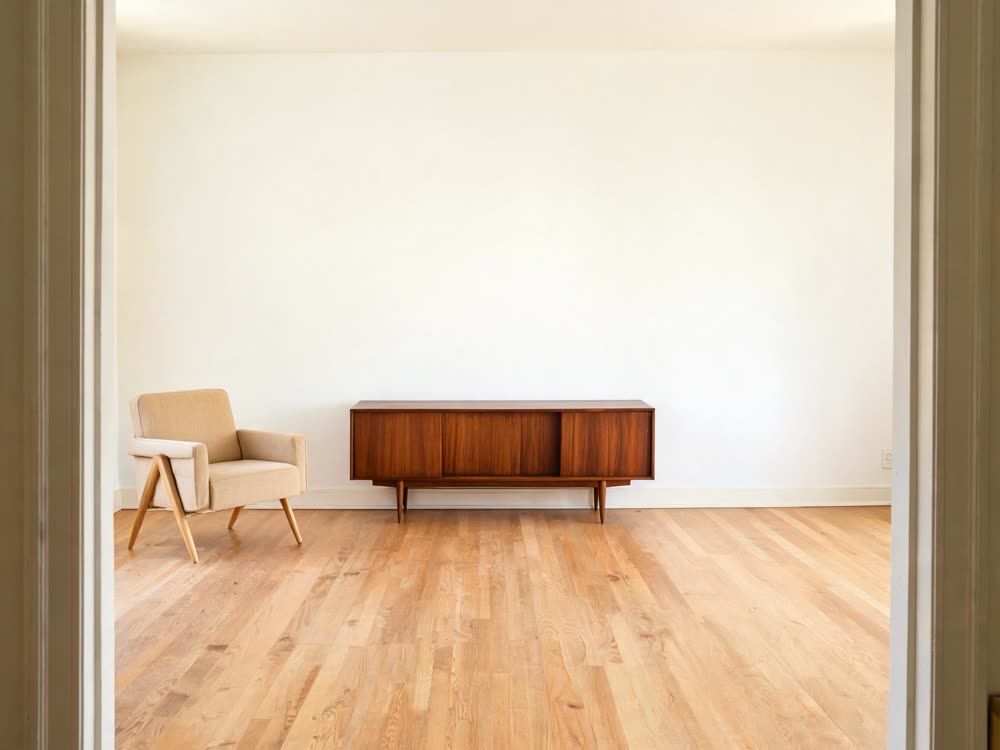
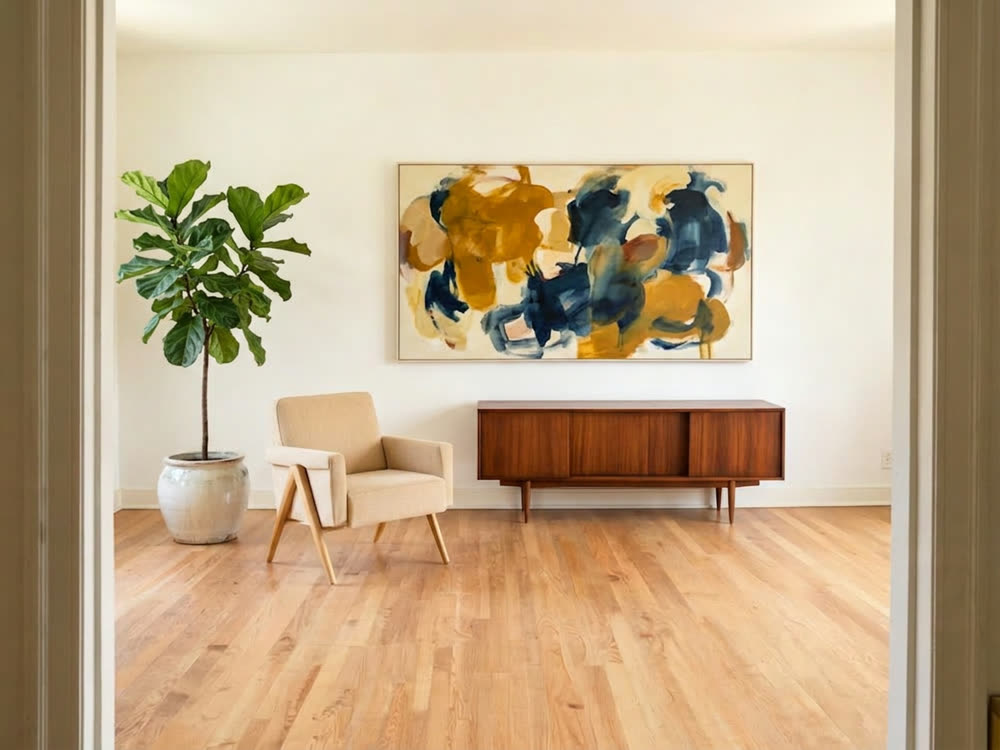
To edit a photo by drawing on it, open Sketch to Edit, click Upload an image to edit, pick the Pen, Rectangle, Arrow or Text tool and mark the spot (circle the lamp, draw an arrow to the wall, write "red sofa"), add a line in Describe the edit if you like, and press Generate Image. The model redraws what you marked and leaves the rest of the picture alone. One edit costs 16 credits on Nano Banana 2, the default, and from 3 to 30 credits on the other edit models.
Drawing is for when words are not enough: "the second cup from the left" is easy to get wrong, a circle around it is not. Below: the steps, what to draw for each kind of change, and which model to pick.
What you need
- The photo, as PNG, JPG or WEBP. Or start from a blank canvas in 1:1, 16:9 or another shape.
- An idea of the change, in a few words: what goes where, what goes away, what changes colour.
- A Kinoseed account with credits. Edits run on a plan: the $10 Basic plan (500 credits a month) is $10 a month and covers 31 edits on Nano Banana 2.
Step by step
- 1
Open Sketch to Edit and upload the photo
Click Upload an image to edit, or pick a shape under "or start from a blank canvas" to draw from nothing. The photo fills the canvas with the drawing tools above it.
- 2
Mark the change
Pen draws freehand: circle a thing or scribble over it. Rectangle boxes an area. Arrow points from a label to a spot. Text writes a note on the picture, such as "add a window here". Insert image drops a picture on the canvas, for a product or a logo to place. Eraser, Undo, Redo and Clear fix the marks; the photo itself is never changed by them.
- 3
Say what the marks mean in Describe the edit
Optional, but it helps: "replace the circled lamp with a brass floor lamp", "remove everything scribbled", "make the boxed wall dark green". Keep it to the marked spots.
- 4
Pick the model and press Generate Image
The model chip shows Nano Banana 2. Click it to switch: Nano Banana Pro (30 credits) is the pick for many changes at once or text in the picture. The price is on the button before you press it. The result appears with Edit further, Download before and Download after.
Sketch to Edit
Sketch over an image to direct the edit
Open in appSign in to generate. The price of a run is on the button.
Prompts to copy
Paste any of these into Sketch to Edit as a starting point, then change the details to fit your photo.
Replace a thing
Replace the circled lamp with a tall brass floor lamp. Keep everything else the same.
Remove
Remove everything scribbled over, and fill the space with the wall and floor around it.
Add at an arrow
Add a small potted olive tree where the arrow points, in the same light as the room.
What to draw for each kind of change
To remove something, scribble over it and write "remove". To replace it, circle it and write what goes there. To add something, draw an arrow to the empty spot or a box where it goes. To recolour, box the area and name the colour. To place your own product or logo, use Insert image and then say "blend it into the scene".
One kind of change per run gives the cleanest result. Use Edit further to make the result the new photo and mark the next change on it.
Which model to pick
Nano Banana 2 is the default, 16 credits an edit. FLUX 3 Klein is the lowest price at 3. Nano Banana Pro costs 30 and is the one to use for several instructions at once, faces that must stay the same, or words in the picture. The chip holds 12 models that edit a photo you add: GPT Image 2, Nano Banana 2, Nano Banana Pro, Seedream 5.0 · Lite, GPT Image 1.5, Grok Imagine, FLUX 3, FLUX 3 Klein, Nano Banana 2.1, GPT Image 2.5, FLUX.2 and Reve.
For a mask instead of a sketch, Inpaint paints the exact area to replace; see how to remove objects from a photo. To turn a sketch into a video instead of a picture, see sketch to video.
Tips for better results
- Use a colour that stands out from the photo, so the model reads the marks as marks.
- Write notes short and on the spot they are about.
- If something outside the marks changed, say "keep everything else the same" in Describe the edit.
- Download before and Download after keep both versions for a side-by-side post.
Frequently asked questions
Can I edit a photo by drawing on it?
Yes. In Sketch to Edit, upload the photo, circle, box, scribble or write on the part to change, and press Generate Image. The model redraws the marked spot.
Do the marks show in the result?
They are instructions, not part of the picture: the model reads them and redraws the photo without them. If one stays, run Edit further with "remove the drawn lines".
How much does an edit cost?
16 credits on Nano Banana 2, from 3 to 30 on the other models. On the $10 Basic plan (500 credits a month) that is 31 edits on Nano Banana 2.
Is there a watermark?
No. The edited image downloads without one.
Try it on your own photo.
Sketch to Edit is open to explore. The price of a run is on the button before you spend anything.