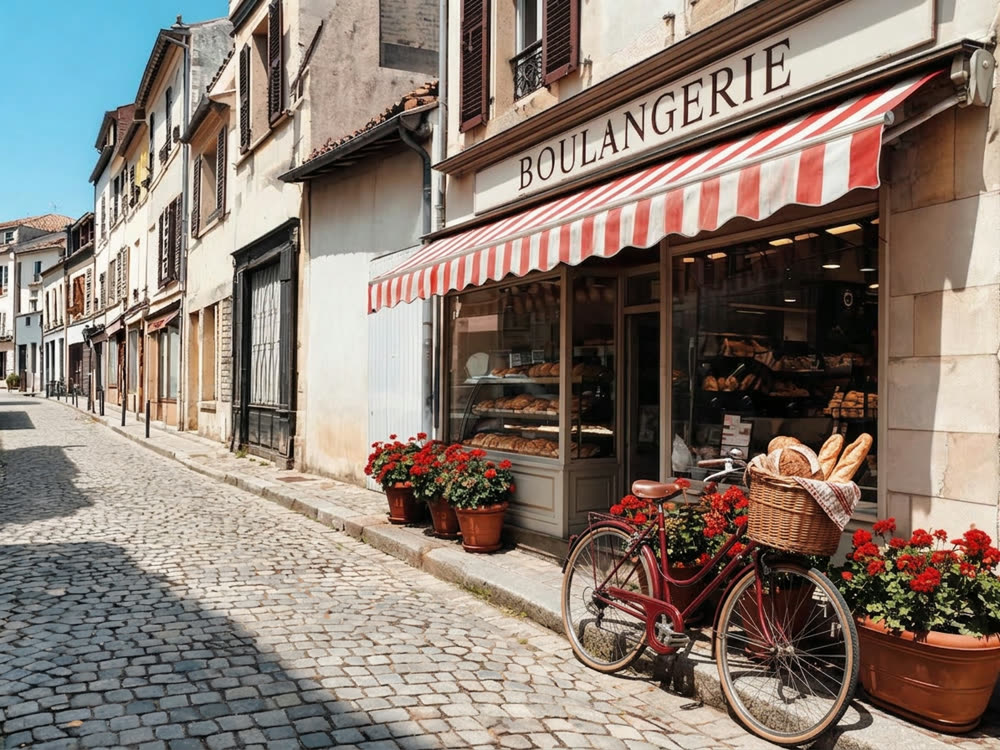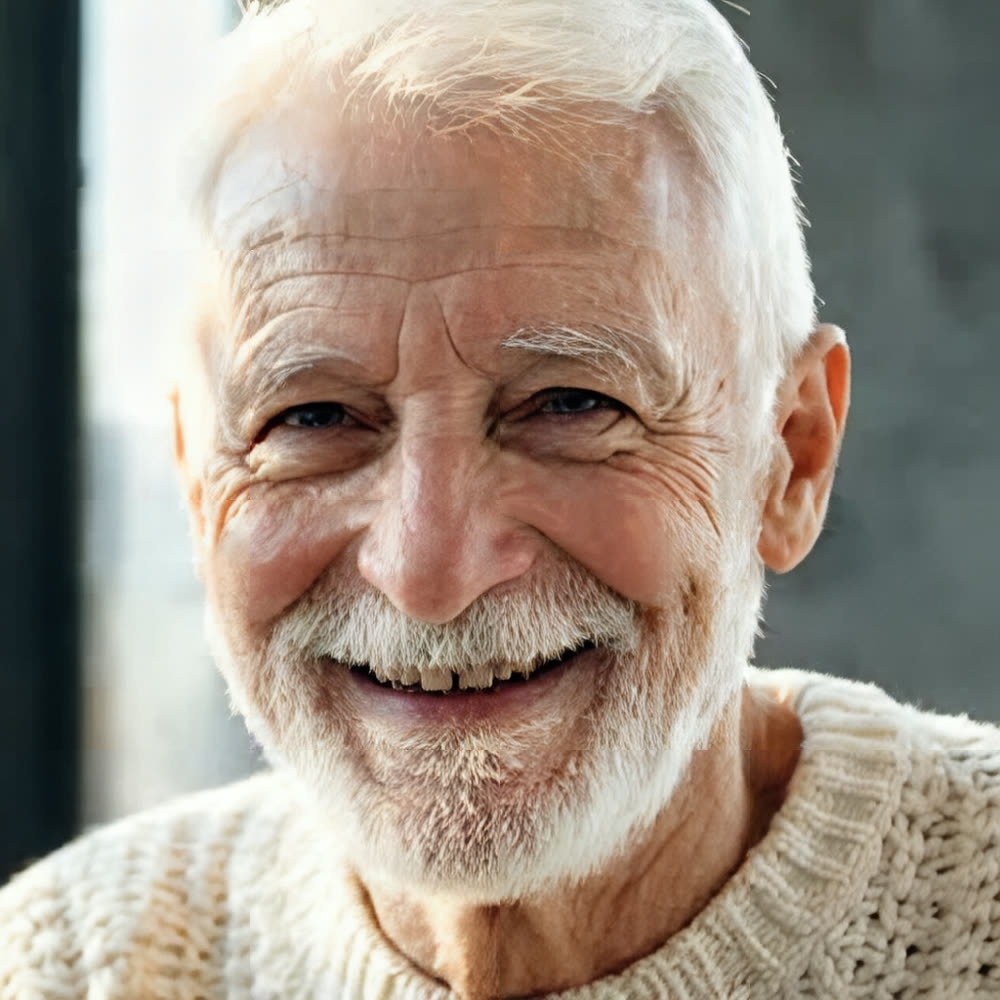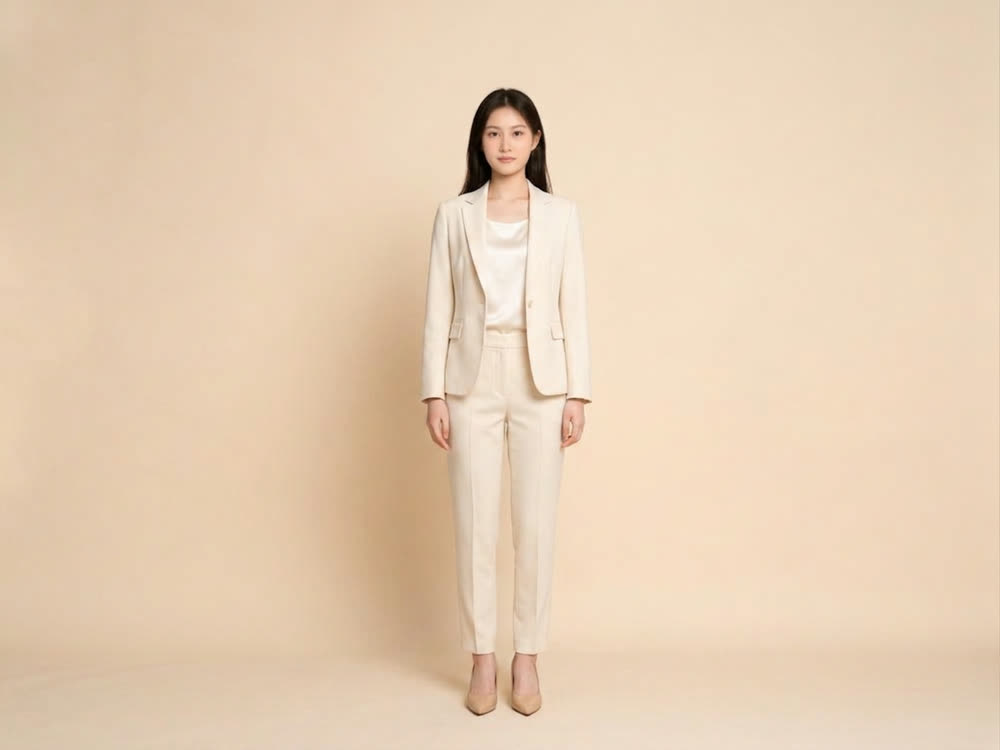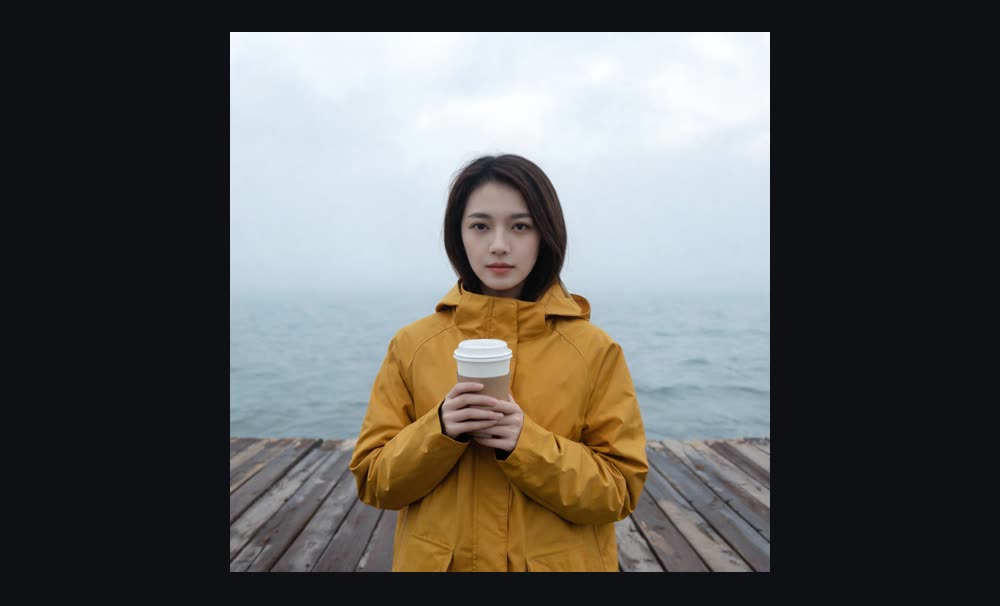
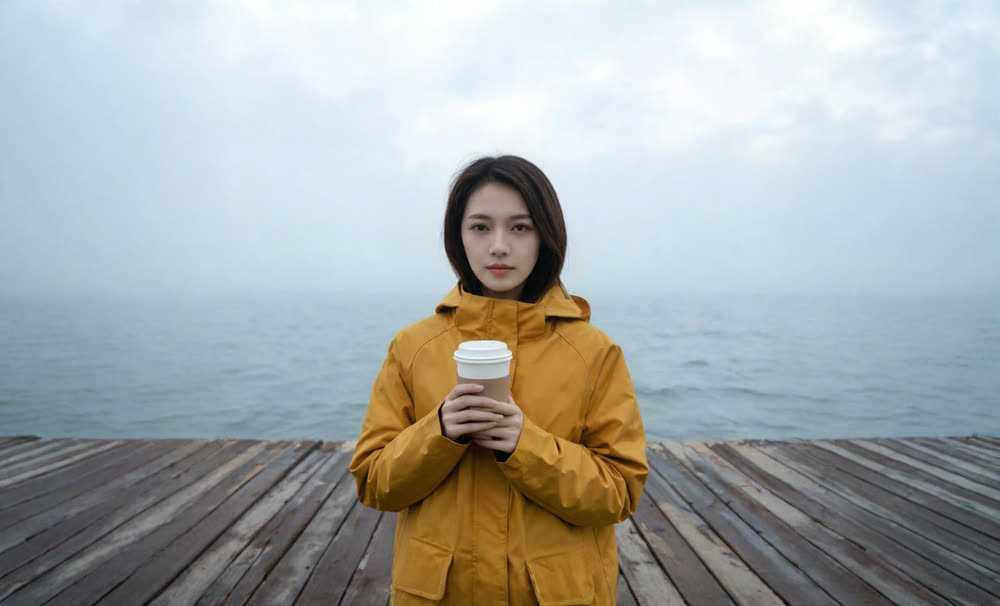
Every platform wants a different shape. The portrait you shot for Instagram needs to become a 16:9 YouTube thumbnail, the square product shot needs room for a headline, the banner needs to be twice as wide. Cropping throws away the subject. AI outpainting does the opposite: it extends the image past its original edges and invents the scene that would have been there.
This article covers how to extend an image with Kinoseed's Expand Image tool, which needs no prompt at all.
What you need
- The photo you want to widen or heighten.
- The aspect ratio you need it in, for example 16:9 for YouTube or 4:5 for an Instagram feed post.
Step by step
- 1
Add the image
Drop it into the Image slot. A crop that lost its context is the ideal case: a portrait cut off at the shoulders, a landscape trimmed to a square.
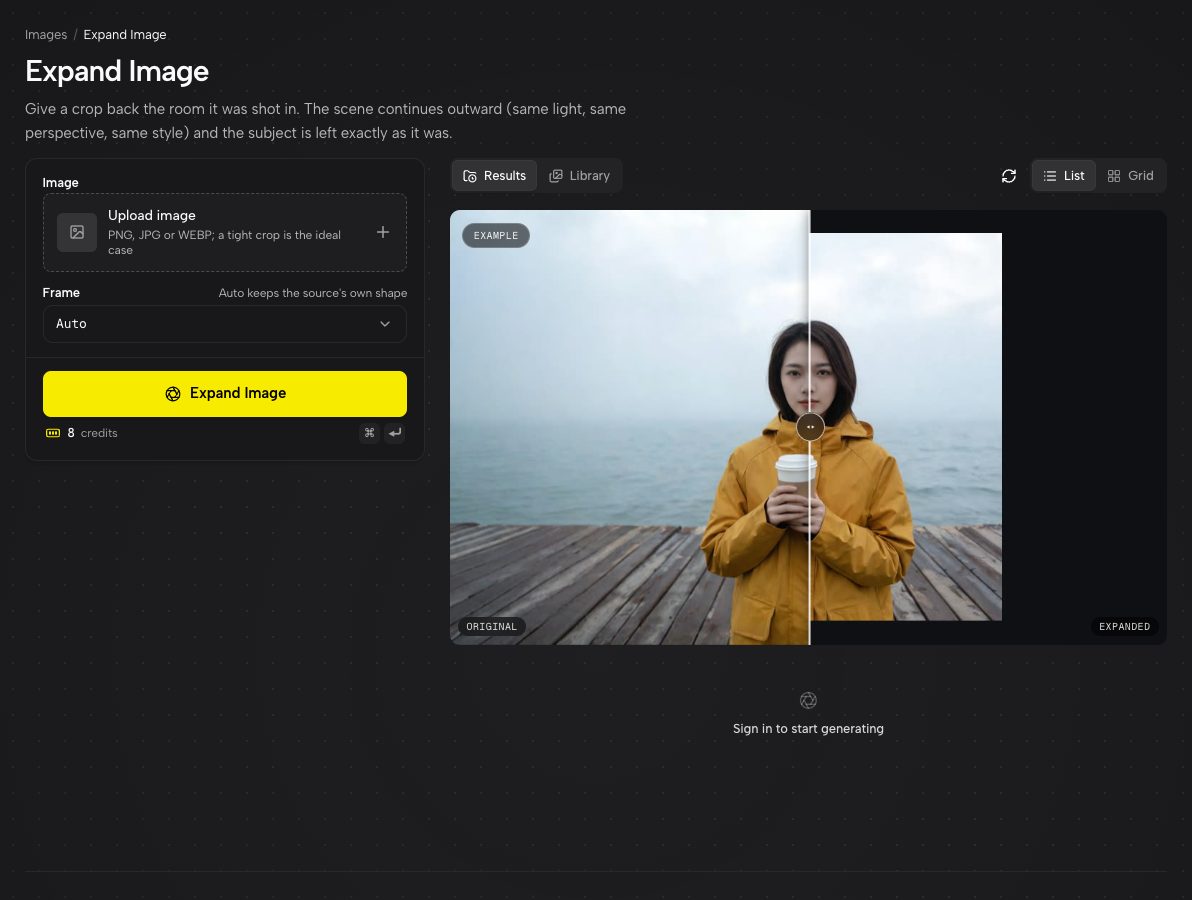
Expand Image with an example loaded: the original in the middle, the new frame around it. - 2
Choose the frame
Auto keeps the source shape and simply adds room on every side. Naming a ratio (1:1, 3:2, 4:3, 4:5, 9:16, 16:9 and their flips) pushes the picture into that frame instead, with the new space going wherever the original does not reach.
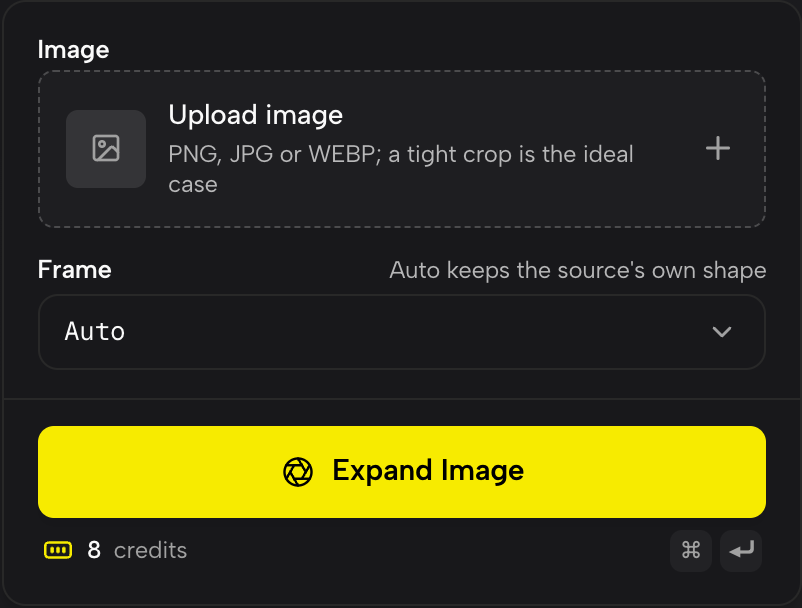
The Frame setting. Auto adds room in the photo's own shape; the ratios reframe it. - 3
Press Expand Image
There is no prompt box, on purpose. The tool continues the existing background, lighting, perspective and texture outward and leaves your original pixels alone. The result appears in the feed, ready to download.
What is outpainting?
Outpainting is inpainting turned inside out. Instead of filling a hole inside the picture, the model fills the empty canvas around it, reading the edges of the photo for clues: where the horizon runs, which way the light falls, what texture the floor has. Because the original is kept intact, it looks like the photographer simply stood further back.
Which photos extend best
Photos with a quiet side to grow into: sky, sea, a wall, a field, an out-of-focus background. The model has plenty of pattern to continue and little to get wrong.
The hard case is a subject pressed right against the edge, like a face cut off by the frame. The model then has to invent the rest of that face, which is a much bigger ask than continuing a sky.
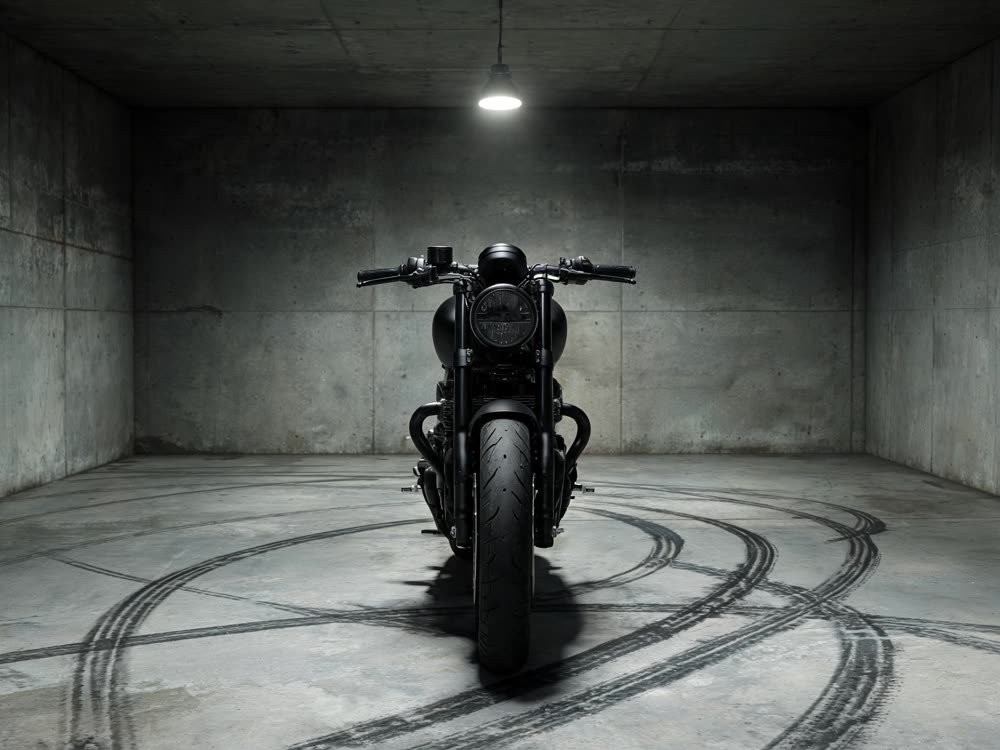
More examples
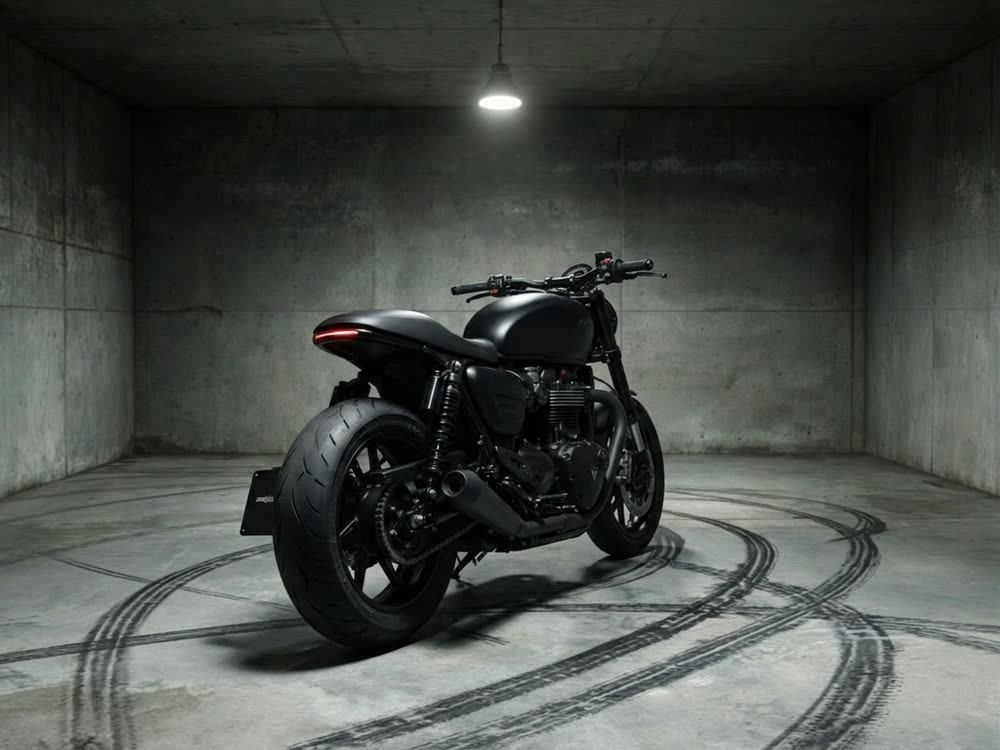
Tips for better results
- Big jumps invent a lot. Going from a tall 9:16 portrait straight to 16:9 asks for more new pixels than the photo has clues for. If the edges drift, step through 1:1 first, then expand that result to 16:9.
- Expand before you upscale. Outpainting works at the source resolution, so upscaling the final wide frame gives the most consistent detail across old and new areas.
- If something odd appears in the new area, remove it with Inpaint rather than re-rolling the whole expansion.
Frequently asked questions
Does outpainting change the original part of the photo?
No. Expand Image keeps your original pixels and only generates the new area around them.
Can I tell it what to put in the extended area?
Expand Image has no prompt: it continues what is already in the frame. To add something specific to the new space, expand first, then use Inpaint on that area with a description.
What aspect ratios are supported?
Auto, which adds room in the source shape, plus 1:1, 3:2, 2:3, 4:3, 3:4, 4:5, 5:4, 9:16 and 16:9.
Is this the same as Photoshop's Generative Expand?
It does the same job: extending the canvas and filling it to match. The difference is that it runs in the browser in one step, with no selection or layer work.
Try it on your own photo.
Expand Image is open to explore. The price of a run is on the button before you spend anything.