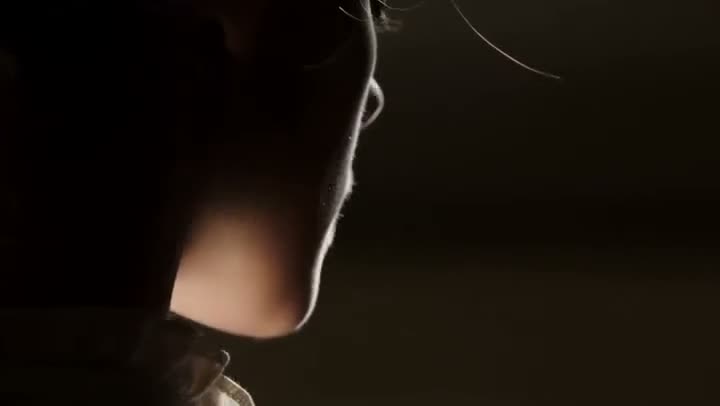
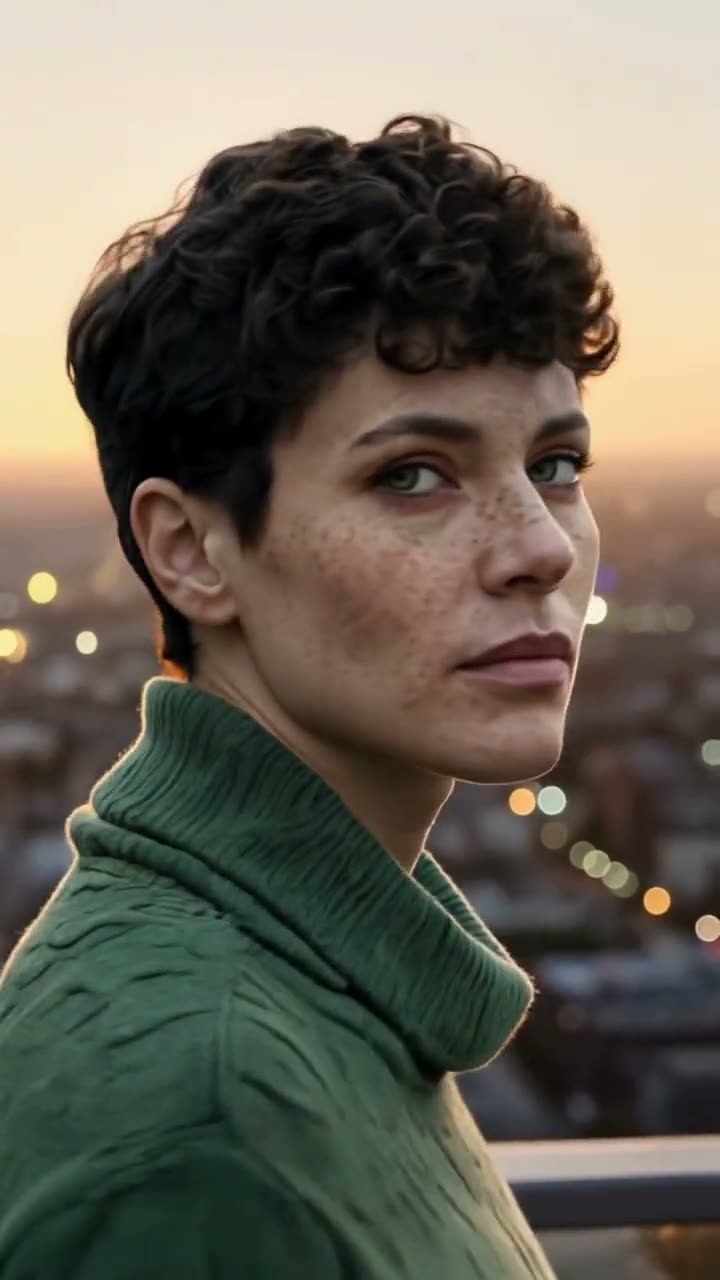
Cutting a person out of moving footage used to mean a green screen on the day or hours of rotoscoping afterwards. Hair, hands and fast gestures are where it goes wrong, and every frame has to be fixed by hand. An AI matting model does that frame by frame for you, so you can remove the background from a video you already shot.
Here is how to do it with Kinoseed's video Background Remover, and how to use the result in your editor.
What you need
- A clip with one clear subject, between 1 and 60 seconds long (MP4, MOV or WEBM).
- An editor that can key out a colour: Premiere, Final Cut, DaVinci Resolve, CapCut and most others can.
Step by step
- 1
Upload clip
Drop your footage into the Upload clip slot. One clear subject works best, and the more separation there is between them and what is behind them, the cleaner the edge comes back.
- 2
Check the length
Clips up to a minute are accepted. The price is worked out from the clip's measured length and shown on the button before you press it, so a five-second clip costs a fraction of a minute-long one.
- 3
Press Remove background
The BEN2 model mattes the subject out of every frame. When it finishes, the clip plays in the feed, ready to expand, download or run again.
- 4
Key out the black in your editor
The result is an MP4 with the background rendered flat black. Put it on a track above your new background and key out the black. A flat black plate keys cleanly against almost any subject.

Why black and not transparent?
MP4 has no alpha channel, so it cannot carry transparency. The tool says so on the page before you pay, rather than leaving you to find out afterwards. In practice the black plate is what a compositor would ask for anyway: a luma or colour key on pure black is one click in any editor.
Footage that mattes well
A person in front of a busy room is fine, as long as they are clearly the subject. What causes trouble is ambiguity: two people overlapping, a subject wearing the same colour as the wall behind them, or motion blur so heavy that the edge is a smear in the original frames.
More examples

Tips for better results
- Trim before uploading. The run is billed per second of source, and you only need the part that goes in the edit.
- Shoot or choose footage where the subject does not leave the frame. A subject that exits and re-enters is harder to follow.
- If the subject is wearing black, place them in front of something lighter when you can, or use a luma key with care around dark clothing.
- For a still image or a product packshot, the image background remover is the faster, cheaper tool.
Frequently asked questions
Can I get a transparent video?
Not directly: the output is an MP4, and MP4 cannot store transparency. Key out the flat black background in your editor and you get the same result.
How long can the clip be?
From 1 second up to 60 seconds.
Do I need a green screen?
No. The model separates the subject from whatever is behind them in ordinary footage.
How much does it cost?
It is priced per second of the clip you upload, and the exact number is on the Remove background button before you run it. Failed runs are refunded automatically.
Try it on your own shot.
Background Remover is open to explore. The price of a run is on the button before you spend anything.